AI Studio Overview
The AI Creative Studio is the built-in AI workspace for advertising content on Onflow Ads. It writes promotional posts from a short brief, sharpens copy you already have, and — on the top plans — generates original promo images for your campaigns.
You'll find it in your dashboard at:
https://onflowads.com/telegram/dashboard/ai-studio
From your dashboard home (https://onflowads.com/telegram/dashboard), it's the AI Studio entry in the side menu.
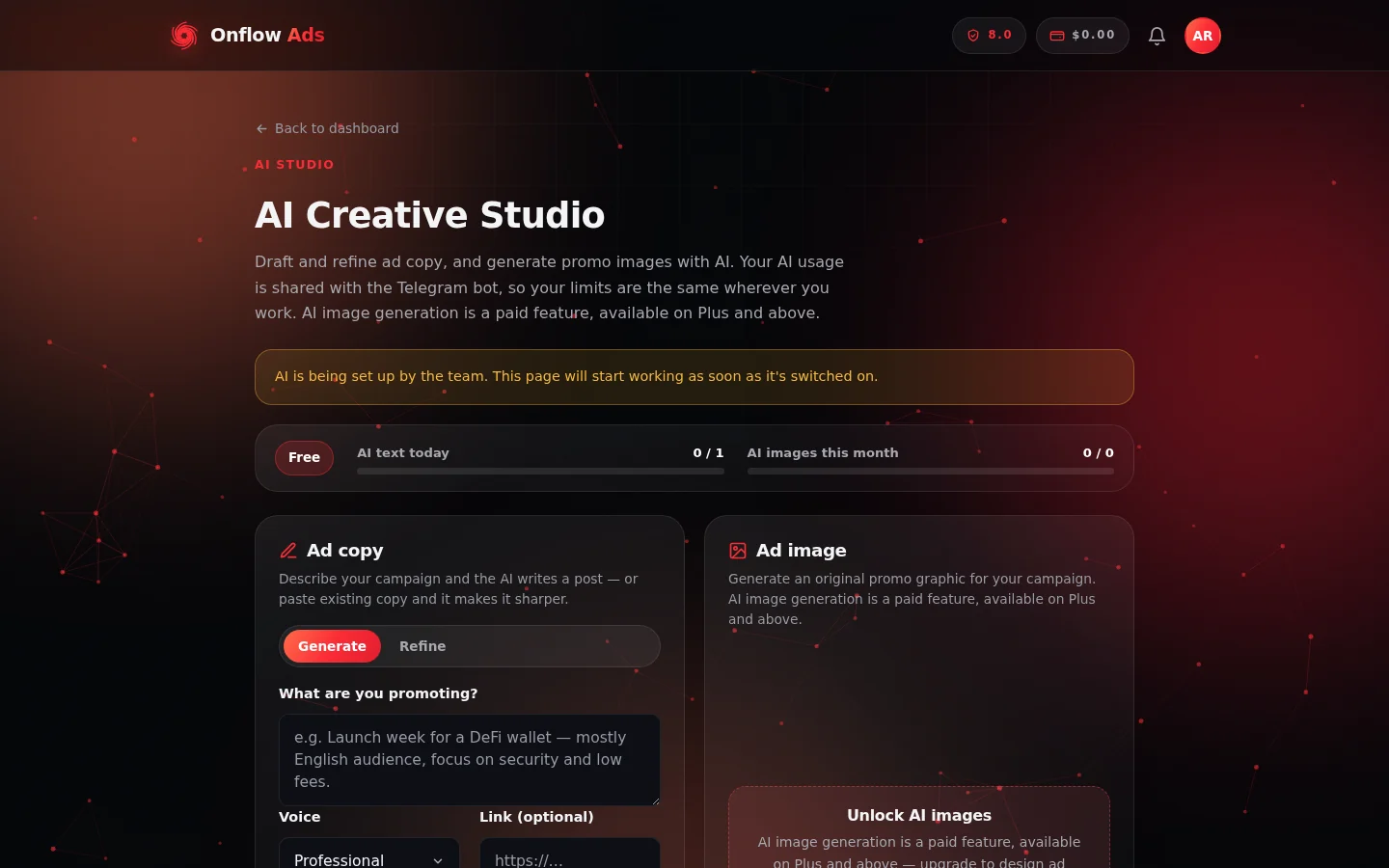
The AI Creative Studio. The status strip sits under the title; the Ad copy card is on the left and Ad image on the right. Here the account is on a plan without AI images, so Ad image shows its Unlock panel.
Who it is for
- Advertisers — draft ad copy for paid promotions, Boost campaigns, and Subscriber Exchange ads in seconds.
- Channel owners — write cross-promo posts, listing blurbs, and announcements in a consistent voice.
- Anyone on Onflow Ads — AI text actions are included on every plan; your exact daily allowance is shown on the Studio meter. AI image generation is reserved for the top plans.
The four AI flows
| Flow | What it does | Availability | Guide |
|---|---|---|---|
| Generate | Writes one short, Telegram-ready promotional post from your brief, in a voice you pick | All plans (daily allowance) | Generating ad copy |
| Refine | Improves copy you already have — tighter wording, better hook, clearer call to action | All plans (shares the same text allowance) | Refining ad copy |
| Ad image | Creates an original promo graphic from a text description | Top plans only | Generating ad images |
| AI helpers | Small robot buttons throughout the product — bid coaching, result explanations, targeting advice, and more | Varies by helper | AI helpers across Onflow Ads |
Generate and Refine live side by side in the Ad copy card; Ad image is the card next to it. See Opening the AI Creative Studio for a tour of the page itself.
One allowance, everywhere
All AI text features — Studio generation, refining, and every "explain / coach / draft" helper elsewhere in the product — draw from one shared allowance of AI text actions. AI images have their own separate allowance.
Your usage is also shared with the Onflow Ads Telegram bot: if your Telegram account is linked, AI actions you take in the bot and on the website count against the same limits, so your allowance is the same wherever you work.
The Studio page always shows your live status at the top:
- a tier pill with your current plan,
- an AI text today meter (used / limit),
- an AI images this month meter (used / limit).
Full details are in AI quotas and limits.
Built-in safeguards you'll appreciate
- Failures never cost you. If the AI errors out or returns nothing, the action is automatically refunded — the message says "no action was used."
- Sanitised output. Generated copy uses only Telegram-safe formatting (bold, italic, and links), so you can paste it straight into a post.
- Content rules are enforced up front. Prompts that break the content policy are declined before anything is generated — and before any quota is spent. See Content rules for AI.
- Automatic link tracking. If you include a link when generating copy, Onflow Ads can convert it into a tracked link so you see clicks and conversions on the Link Tracking page of your dashboard.
You must be signed in to use any AI feature. If the Studio asks you to sign in, or shows "Please sign in again.", sign in at https://onflowads.com/signin and reload the page.
In this section
The pages below run in reading order: open the Studio, write and refine copy, generate images, then the allowances and content rules that apply to all of it.
Opening the AI Creative Studio
Find the Studio in your dashboard and learn to read every part of the page — the status strip, the two cards, and the banners.
Writing Ad Copy with AI
Which of the two AI copy flows to use — Generate for a brand-new post, Refine for copy you already have.
Generating Ad Copy
Write a brand-new Telegram-ready promotional post from a short brief, with a tone of voice and an optional tracked link.
Refining Ad Copy
Improve ad copy you already have — tighter wording, a sharper hook, a clearer call to action, and never an invented fact.
Generating Ad Images
Create an original promo graphic from a text description — who can use it, how to describe an image well, and what you get back.
AI Helpers Across Onflow Ads
A map of every 🤖 and 🎨 helper button built into the rest of Onflow Ads — where each one lives, what it does, and what it costs.
AI Quotas and Limits
How AI text and image allowances work on each plan, the two windows, when they reset, how reliability changes them, and what every limit message means.
Content Rules for AI
What the Onflow Ads AI will refuse to generate, how declines work, what happens to your account afterwards, and how to rephrase a legitimate brief.
AI Studio FAQ and Troubleshooting
Every AI Studio message explained — quota walls, declines, pauses, and errors — plus the questions customers ask most.
Next: Opening the AI Creative Studio — find the page and learn to read the status strip before you generate anything.