Opening the AI Creative Studio
This page is the setup step for every other AI flow. Before you generate or refine anything, it's worth two minutes to learn where the Studio is and how to read the status strip at the top — it tells you, at a glance, how much AI you have left today and whether anything is currently blocking you.
What the Studio is
The AI Creative Studio is a single dashboard page with two working cards:
- Ad copy — writes a new promotional post, or improves one you paste in.
- Ad image — creates an original promo graphic from a description.
Everything happens on the page. Nothing is posted, published, or charged to your wallet — the Studio only produces text and images for you to copy, download, and use wherever you like.
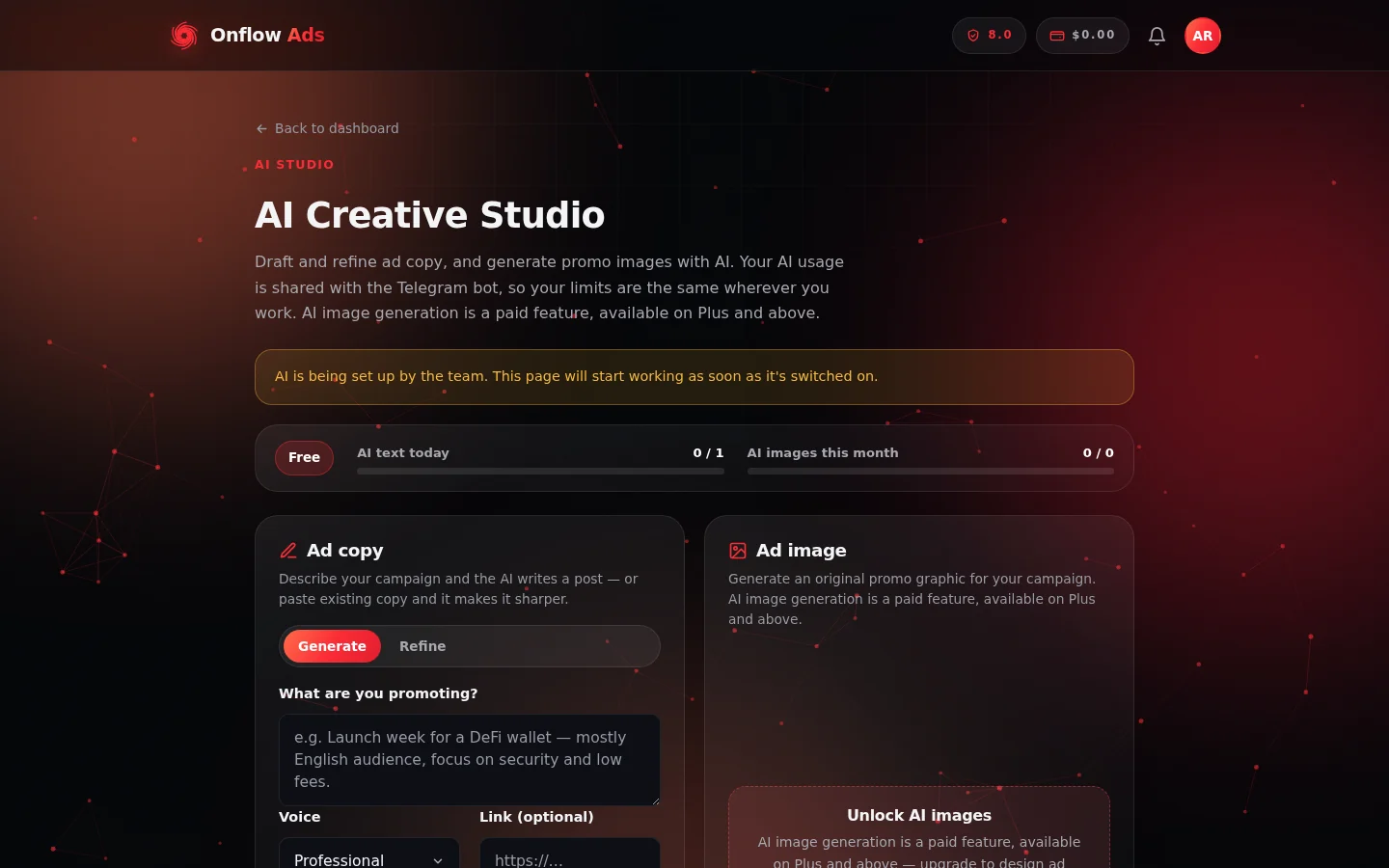
Everything on this page is described below: the status strip under the title, the Ad copy card with its Generate and Refine pills, and the Ad image card on the right. The amber line above the meters only appears when something is limiting your AI.
How to open it
- Sign in at https://onflowads.com/signin.
- Go to your dashboard at https://onflowads.com/telegram/dashboard.
- Select AI Studio in the side menu.
You can also go straight there: https://onflowads.com/telegram/dashboard/ai-studio
The page header reads AI Creative Studio, with a Back to dashboard link above it that returns you to the dashboard home.
The Studio needs an active signed-in session. If your session has expired, actions come back with "Please sign in again." — sign in again and reload the page. Nothing is spent when this happens.
Reading the status strip
Directly under the page title is a strip that reflects your live AI status. It refreshes when the page loads and again after every generation, so it is always current.
| Part of the strip | What it shows | How to read it |
|---|---|---|
| Tier pill | Your current Onflow Ads plan | This is the plan your AI allowance is calculated from |
| AI text today | Used / limit for text actions, with a progress bar | Covers Generate, Refine, and every AI text helper across the product |
| AI images this month | Used / limit for image generations, with a progress bar | Zero on plans that don't include AI images |
| Reliability note | An amber line that appears only when something is limiting your AI | See the table below |
If your account has no limit at all (a testing account set up by the team), the meter reads the number used followed by Unlimited instead of a used-or-limit pair.
The amber note under the meters
This line is hidden unless one of two things is true:
| Note you see | What it means | What to do |
|---|---|---|
| "AI is paused on your account while a review is open. It returns as soon as the review is resolved." | Your account is under review, so all AI is paused | Nothing — access returns automatically when the review closes |
| "Your AI limits are reduced while your reliability recovers — a clean streak restores them." | Your reliability score is below the Fair band, so your allowance is throttled and images are off | Complete your commitments cleanly and on time; see AI quotas and limits |
The two cards
Ad copy
The Ad copy card carries two pill buttons, Generate and Refine. Generate is selected when the page loads. Switching pills swaps the form below without losing what you typed in the other mode.
- Generate asks "What are you promoting?", a Voice, and an optional Link (optional) — see Generating ad copy.
- Refine asks for Your copy and an optional How should it change? (optional) — see Refining ad copy.
Both modes spend from the same AI text today meter.
Ad image
The Ad image card behaves in one of two ways depending on your account:
- Unlocked — you get a Describe the image box and a Generate image button.
- Locked — you get a panel with a heading, a one-line reason, and a See plans button that takes you to https://onflowads.com/pricing.
The lock panel's heading names the reason:
| Heading | Reason |
|---|---|
| Unlock AI images | Your plan does not include AI image generation |
| AI is paused | Your account has an open review |
| Images limited right now | Your reliability is recovering, so images are off for the moment |
Full detail is in Generating ad images.
Banners you might see before you start
- "AI is being set up by the team. This page will start working as soon as it's switched on." — an amber banner above the status strip. AI is not switched on for the platform yet. Nothing on your side to fix; check back later.
- "AI is temporarily unavailable. Please try again shortly." — appears when you try an action while the AI service itself is briefly down. Your allowance is untouched.
What the Studio does not do
- It does not post anything to Telegram for you. You copy the result and use it where you need it.
- It does not save a history or gallery. Copy the text or download the image before you leave the page.
- It does not charge your wallet. AI is metered in actions, not money — see AI quotas and limits.
FAQ
Do I need a channel connected to use the Studio?
No. The Studio works on any signed-in account. A connected channel only matters for the helpers built into other flows, like the Subscriber Exchange ad builder.
Can I use it on my phone?
Yes. The page reflows to a single column on narrow screens, with the Ad copy card first and Ad image below it.
Why are my meters showing dashes?
The status strip shows a dash until the page has loaded your live state. If it stays that way, reload the page; if it still doesn't fill in, you're probably signed out.
Does opening the page use an AI action?
No. Loading the Studio, reading the meters, and seeing an upgrade panel are all free. An action is only spent when you press a generate or refine button and the AI actually returns a result.
Next: Writing ad copy with AI — decide which of the two copy flows you need.