Browsing services and prices
You can browse the Boost catalogue two ways: publicly (no account needed) on the price pages, or signed in from the Boost dashboard, where every price already includes your member discount.
The public price list
Open https://onflowads.com/boost/prices. It shows every live service, grouped by platform, with:
- the service name (click it to open that service's own page),
- quality tags (and a "members" tag on services reserved for paid plans),
- the category and, when the provider publishes one, an average delivery time,
- the allowed quantity range (minimum – maximum),
- the price in USD per 1,000 units, with an approximate INR conversion where available,
- a star rating from verified buyers, when the service has reviews.
Prices on this page are live list prices — members pay less at every paid plan, and the page's totals update as the catalogue does.
When there is real order volume, the page also shows live totals — units delivered, orders completed and the number of live services.
Estimating a price for your quantity
Every row has a "Calculate a quantity" button. It opens the Price calculator, where you type or slide a quantity (within the service's min/max) and see the estimated USD total (plus an INR estimate where available).
The calculator shows the list price. Sign in to see your member discount, volume breaks and any coupon applied at checkout — the full quoting story is on Getting a quote.
Reading reviews
If a service shows a star rating, click it to open the reviews wall: the average rating, the number of verified buyers, and their written notes. Only people who actually bought the service can review it, so ratings are real testimony. How reviews work — reading, writing, anonymity and the standards check — has its own page: Verified-buyer reviews.
Per-platform pages
Each platform has its own landing page with just that platform's services and prices, plus a short FAQ. They are the quickest way to see one platform's catalogue without the noise of the others:
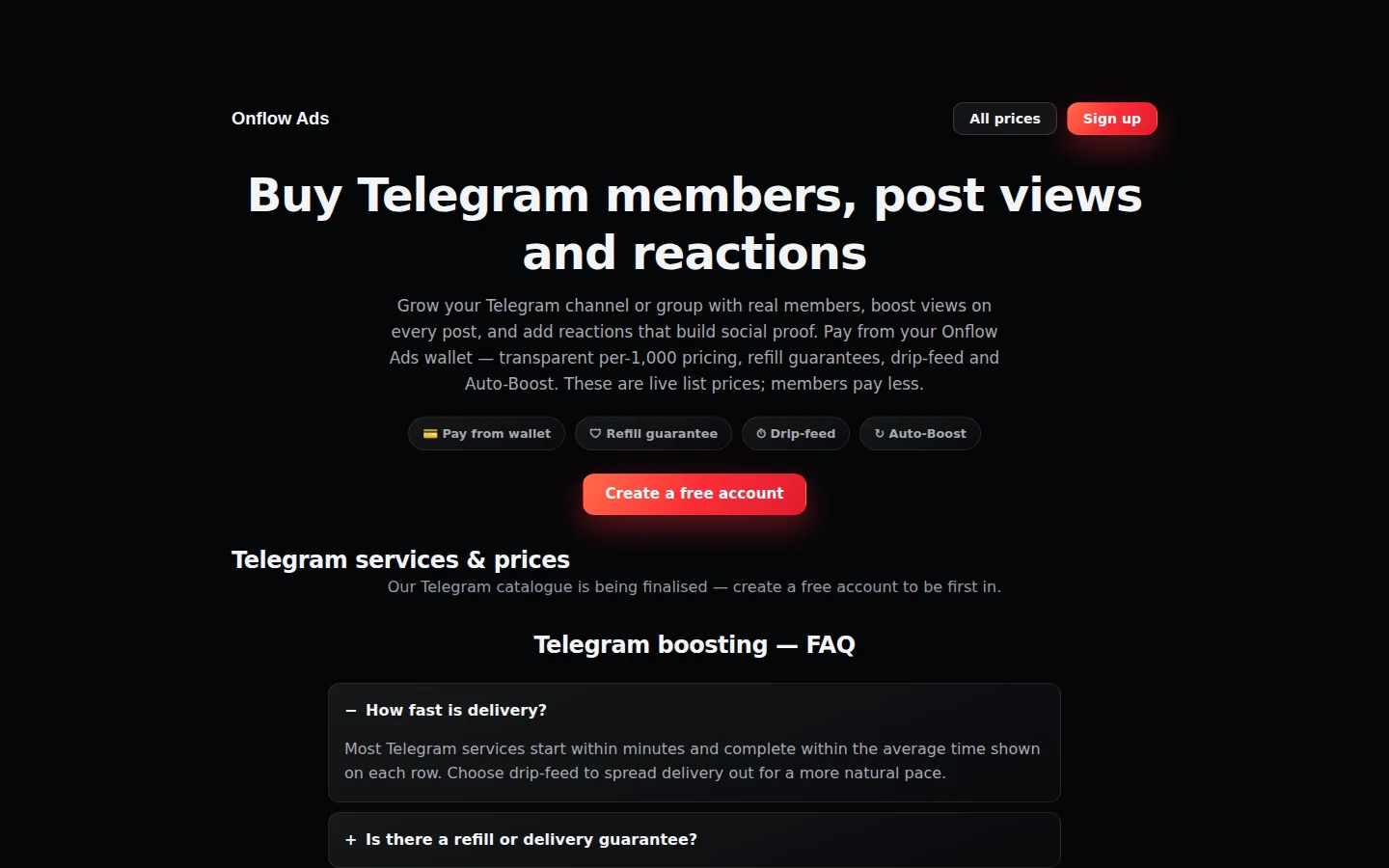
A per-platform page (Telegram). The "All prices" button top-right returns you to the full cross-platform list, and the FAQ at the bottom answers delivery and guarantee questions for that platform.
- https://onflowads.com/boost/telegram
- https://onflowads.com/boost/instagram
- https://onflowads.com/boost/youtube
- https://onflowads.com/boost/tiktok
- https://onflowads.com/boost/x
- https://onflowads.com/boost/facebook
- https://onflowads.com/boost/discord
- https://onflowads.com/boost/spotify
- https://onflowads.com/boost/twitch
- https://onflowads.com/boost/threads
A single service's page
Every service has a shareable permalink like https://onflowads.com/boost/service/12-telegram-channel-members (service ID plus its name). The page shows the current per-1,000 price, quantity range, delivery info, quality tags, the platform, its rating, a full description and related services — and an "Order this boost" button that takes you into the store. These links are handy for sharing a service with a teammate or client before ordering.
Comparing services side by side
The price list can put up to 4 services in one shareable comparison table — tick the checkboxes next to services and press Compare in the bar that appears. The full flow, the table's contents and its rules have their own page: Comparing services.
Browsing signed in
Once signed in, open your Boost dashboard at https://onflowads.com/telegram/dashboard/boost. The Command center lists every booster you can order with:
- your member price per 1,000 (already discounted for your plan),
- rating, order count and typical start speed,
- sorting chips: Popular, Cheapest, Fastest, Top rated.
Services reserved for a higher plan appear with a lock and the plan that unlocks them. If you have added your Telegram channels, the Command center also shows live metric tiles (Members, Views, Reactions, Shares) with a "BOOST THIS" button on each — a shortcut straight into the order composer for that metric.
The signed-in catalogue is the same catalogue as the public price list — the only difference is that your plan discount is already applied to every card, and member-only services unlock according to your plan.
Next: shortlisted a few services? Put them side by side in Comparing services.