Adding a channel
Adding a channel connects one of your public Telegram channels to your Onflow Ads account so you can list it for cross-promotion and other engines. The whole flow takes under a minute.
- A signed-in Onflow Ads account with a verified email.
- A public Telegram channel (one with a public
@username/t.melink). Private channels, groups and personal accounts cannot be listed. - You must be an administrator of the channel you are adding.
Step by step
The whole flow starts on the Add your channel page — a single card with one field and one button:
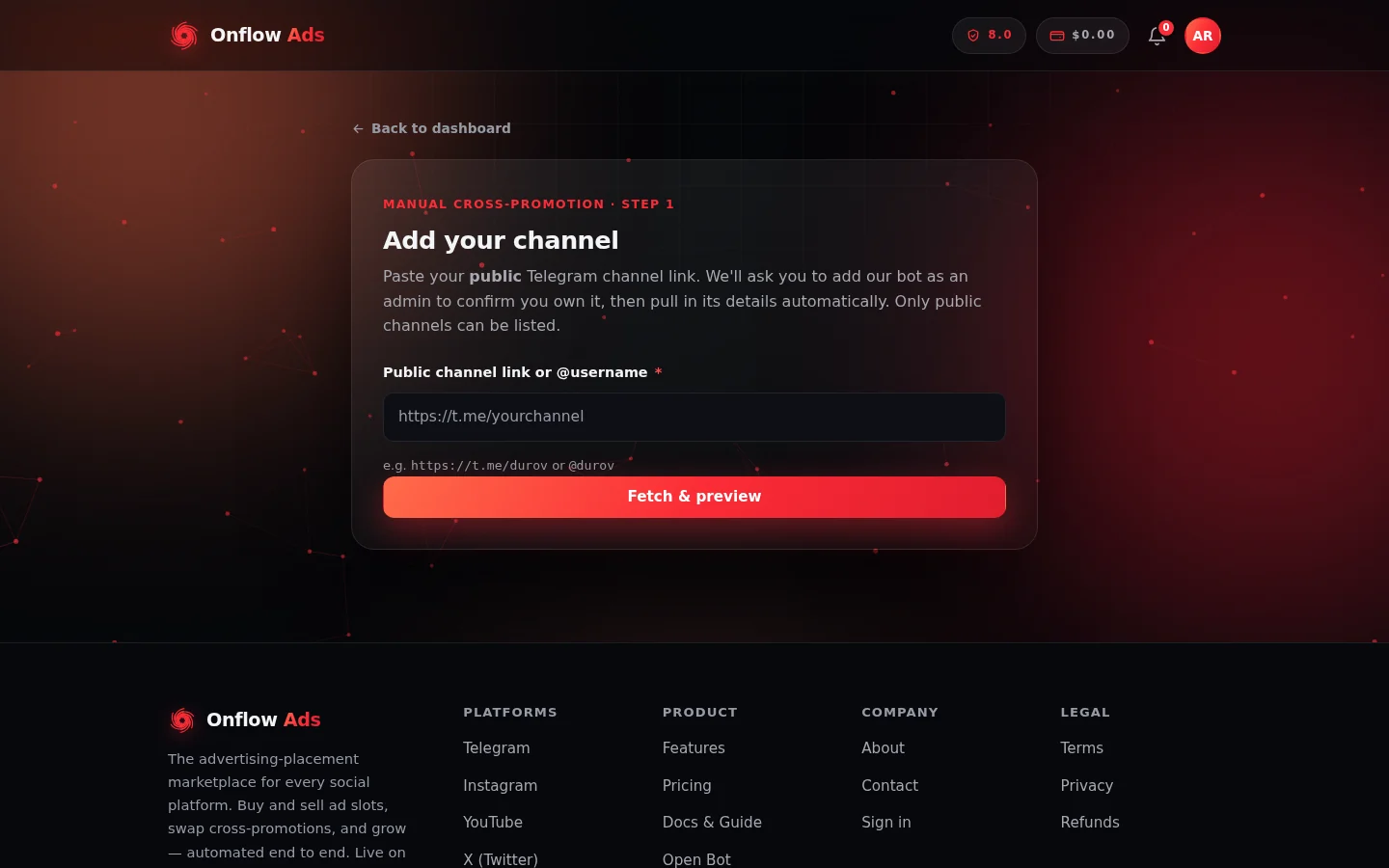
The Add your channel page. Paste your link in the one field, press Fetch & preview, and everything else is pulled from Telegram for you.
- Go to https://onflowads.com/telegram/dashboard and click + Add channel in the My channels section (or open https://onflowads.com/telegram/dashboard/channels/new directly).
- On the Add your channel page, paste your channel into the Public channel link or @username field. Any of these formats works:
https://t.me/yourchannelt.me/yourchannel@yourchannel
- Click Fetch & preview.
- If our bot is not yet an administrator of the channel, the verification panel appears (full guide). Add our bot as an admin, then click I've done it — check again.
- Once verified, a live preview card appears with the badge Public channel found, showing the channel's photo, title, handle, description, subscriber count and average views — all pulled automatically from Telegram.
- Click Continue to setup to open the listing wizard.
Channel verification: adding our bot as an admin
To confirm the channel exists and that you control it, Onflow Ads asks you to add our verification bot to the channel as an administrator. When the check has not passed yet, the "Add our bot to verify your channel" panel appears with the bot's @username (and a Copy button), a checklist of the admin rights needed, a one-tap Add @bot as admin deep link that pre-selects the right toggles in Telegram, and an I've done it — check again button. Verification is instant.
The panel, the exact rights, every result message, and what to do when a check fails are covered end to end on their own page: Verifying your channel.
Other messages you might see
- "Enter a public Telegram link, e.g. https://t.me/yourchannel." — The value you entered does not look like a Telegram channel link or handle.
- "That channel isn't public, or it doesn't exist." — Only public channels can be listed; check the link.
- "You've already added that channel." — Each channel can only be connected once per account.
- "We couldn't reach Telegram from our server right now. Please try again in a moment." — A temporary connectivity issue on our side; retry shortly.
Adding channels is rate limited to protect the platform. If you hit the limit, wait a little while and try again.
What happens after you add a channel
The channel is saved to your account as a draft. Its details (title, description, photo, subscribers, average views) are pre-filled from Telegram. Nothing is public yet — the channel only enters the marketplace after you complete the setup wizard and it passes review.
Next: Verifying your channel — the bot-admin check, the exact rights to grant, and what to do when it fails.