The dashboard home
When you sign in, Onflow Ads takes you to https://onflowads.com/dashboard — a platform launchpad. Telegram is fully live today; other platforms are opening soon. Choosing Telegram takes you to the Telegram dashboard hub at https://onflowads.com/telegram/dashboard, which is where you will spend most of your time.
Every dashboard page requires a signed-in account with a verified email address. If your email is not verified yet, you will be redirected to the verification page first.
The Telegram hub layout
The hub is a two-pane command center: a sidebar on the left and your main workspace on the right. On phones, the sidebar becomes a horizontal rail you can swipe through.
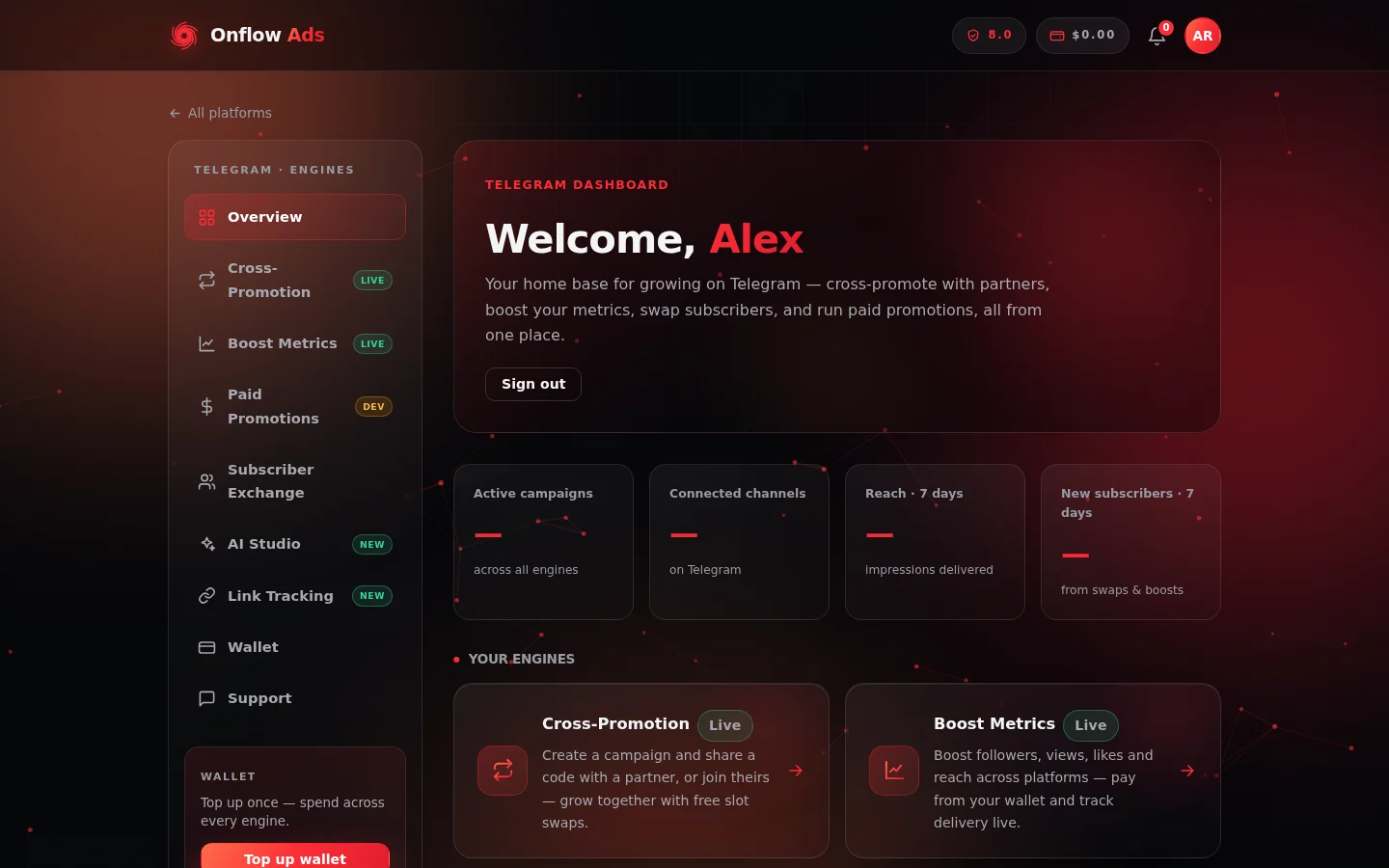
The Telegram hub. The sidebar on the left reaches every engine and tool; the stat tiles and engine cards on the right are your workspace.
Sidebar navigation
The sidebar links to every engine and tool:
| Entry | Where it goes |
|---|---|
| Overview | The hub itself (this page) |
| Cross-Promotion | Free slot swaps with partner channels |
| Boost Metrics | Paid boosts for followers, views, likes and reach |
| Paid Promotions | Buying and selling sponsored posts (carries a "DEV" badge — see the note below) |
| Subscriber Exchange | Reciprocal subscriber trading between channels |
| AI Studio | AI-generated ad copy and creatives |
| Link Tracking | Click analytics for your tracked links |
| Wallet | Top up and manage your balance |
| Support | Chat with the Onflow Ads team |
Below the links sits a Wallet card — "Top up once — spend across every engine" — with a Top up wallet button.
The header panel
At the top of the main column you are greeted by name ("Welcome, …") with a short description of the hub, plus a Sign out button.
Your stats at a glance
A four-tile strip shows key numbers for your account:
- Active campaigns — across all engines
- Connected channels — on Telegram
- Reach · 7 days — impressions delivered
- New subscribers · 7 days — from swaps and boosts
While the numbers are loading (or if stats are temporarily unavailable) the tiles show a dash placeholder.
Your growth engines
The Your engines section is the heart of the hub — one card per way to grow:
- Cross-Promotion (Live) — create a campaign and share a code with a partner, or join theirs. Free slot swaps that grow both channels.
- Boost Metrics (Live) — boost followers, views, likes and reach across platforms. Pay from your wallet and track delivery live.
- Subscriber Exchange (Live) — host ads in your channels and run your own across the exchange. Free, powered by reciprocity.
- Paid Promotions (In development) — buy or sell sponsored posts across the network.
- Support — chat with the team in real time or send a message.
The DEV / "In development" badge on the hub simply marks Paid Promotions as the newest engine, still being actively expanded. The marketplace itself is open and fully usable — browsing, booking, escrow, auctions, delivery monitoring and payouts all work today, and this guide documents them in the two Paid Promotion sections (one for advertisers, one for channel owners).
Power tools
Two extra cards deep-link straight into our Telegram bot, so you can work from inside Telegram:
- Create a campaign — start a new ad campaign, fast and guided, synced with your account.
- Paid Promotions marketplace — browse and book sponsored post slots via the bot.
My channels
At the bottom of the hub, the My channels section lists every Telegram channel you have added, each with its photo, title, handle, subscriber count, average views and a status pill. The + Add channel button starts the add-a-channel flow.
See Managing your channels for everything you can do from this list.
Header tools on every page
Once signed in, a cluster of tools appears in the site header on every page, left of your account avatar:
- Reliability pill — a shield icon with your current score, colored by tier. Click it to open your reliability page.
- Wallet pill — your current balance. Click it to open the wallet.
- Notification bell — your unread count and latest updates. See Notifications.
- Account avatar — a menu with Account, Dashboard, Help & Guide and Sign out, plus an Upgrade plan entry whenever a higher plan is available to you.
On phones, the reliability, wallet and notification entries move inside the avatar menu instead of appearing in the header.
Next: Adding a channel — connect your first Telegram channel to the hub.