Creating a Campaign
Creating a campaign mints a one-time CP code (it looks like CP-7K4M-Q2XP). You hand the code to a partner; when they enter it, they see your channel and your proposed schedule, attach their own channel, and the two of you are paired.
Before you start
- Your channel must be a public Telegram channel (it has a
t.me/...link or an @username). - You will be asked to add the Onflow Ads bot as an admin of your channel if it is not already. This is required so the bot can later publish and remove the promotional posts automatically. The page walks you through it and lets you retry once done.
- Your account must be in good standing — accounts with a very low reliability score are asked to improve it before starting new cross-promotions, and you must have room in your monthly initiation allowance. See Rules and fairness.
Step-by-step
The create wizard runs in four numbered steps — Channel, Schedule, Review, Code — with a progress strip at the top so you always know where you are.
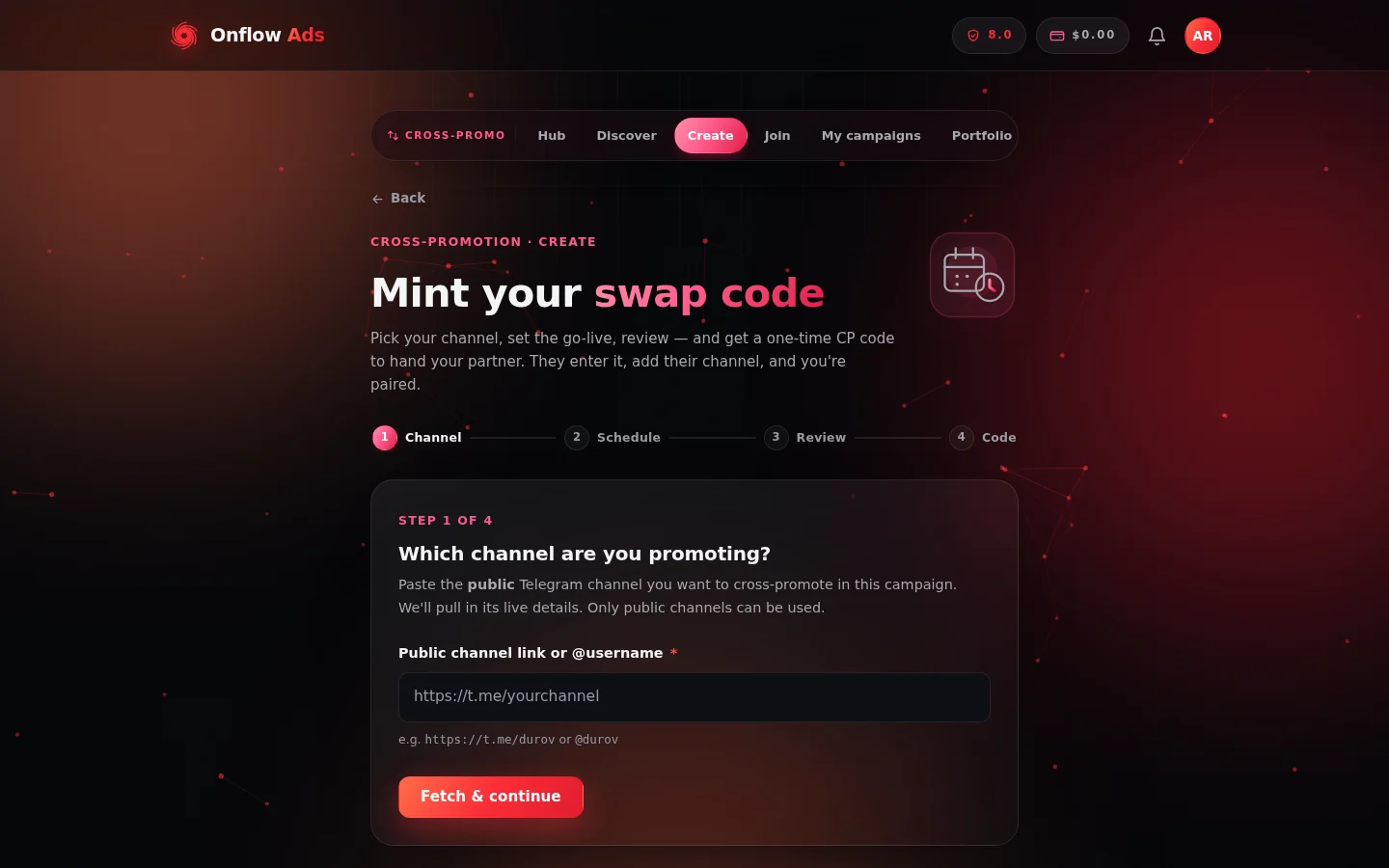
Step 1 of the create wizard. You start by pasting the public channel you want to promote; the page pulls in its live details.
-
Open https://onflowads.com/telegram/dashboard/cross-promotion, choose Have a code?, then Create a campaign. (Direct link:
/telegram/dashboard/cross-promotion/create.) -
Step 1 — Channel. Paste your public channel link or @username (e.g.
https://t.me/yourchannelor@yourchannel) and press Fetch & continue. The page pulls in the channel's live details — title, photo, subscriber count and average views — and shows them as a card with a Public badge. Once fetched, the button reads Continue. -
Channel genre. Pick your channel's genre from the list (Crypto & Web3, Tech & Software, News & Media, Finance & Trading, Education & Courses, Books & Literature, Gaming & Esports, Entertainment, Marketing & Business, Lifestyle, Health & Fitness, Travel, Art & Design, Sports, or Other). This is saved on your channel so you never have to enter it again, and it powers partner matching and the directory's genre filter.
-
Step 2 — Schedule. Choose when the cross-promotion goes live and how long it runs:
- Timezone — detected automatically from your device; press Change to pick another from the list.
- Go-live date — any day within the next 14 days, picked on a calendar (the calendar hint shows the exact selectable range).
- Go-live time — set the hour and minute with the steppers or by typing; switch between 12h and 24h formats. The time must be in the future — a past time today returns "That time has already passed today — pick a later time or another day."
- Duration — how long the posts stay up: 12h (half a day), 24h (1 day), 36h, 48h, 72h, 96h or 168h (1 week).
If you are unsure which day to pick, the 🤖 Best day to go live button suggests an upcoming date based on your channel's busiest posting days, marking the pick with a ⭐ note. (This uses one of your daily AI actions and is only offered when there is enough posting data — otherwise it says no suggestion is available yet.)
-
Step 3 — Review. Check the channel card and the schedule. This step also shows:
- Your plan strip — how many campaigns you have started this month out of your plan's allowance (with a usage meter), plus any plan perks: completion rewards, included insurance, add-on discounts, Blitz capacity, and a one-line upgrade hint. See Rules and fairness.
- List this on the open-codes board — an optional checkbox: "List this on the open-codes board so a well-matched partner can find and join it — instead of only sharing the code privately. You can change this anytime." Ticked, your campaign appears on the public board; left unticked, only someone you send the code to can join. You can toggle this any time while the campaign is still awaiting a partner.
- ⚡ Make it a Blitz — on plans that include it, a checkbox turns this into a one-to-many campaign with an "Up to N partners" selector. See Blitz campaigns.
-
Press Create CP code. Step 4 shows your code on a ticket with a Copy code button (it flashes "Copied ✓"), plus View campaign and Back to dashboard links.
-
Share the code with your partner however you normally talk to them — Telegram, email, anywhere. They enter it on the join page.
If nobody joins within 24 hours of creation, the code expires automatically and we email you. Blitz campaigns are the exception — they stay open while collecting partners until you launch or cancel them.
After creating, the campaign page (linked from View campaign) shows the code again with a copy button, a reminder that "Unused codes expire 24 hours after creation", a List on the board / Remove from board toggle, and a Cancel campaign button if you change your mind.
If you hit your monthly limit
Each plan includes a set number of cross-promotion initiations per month (joins are never counted). If you reach it, the create call is refused with a message showing your usage, which plan raises the limit, and a one-off +1 CP Action override you can buy in the Telegram bot (the price is shown in the message). Expired, cancelled and partner-abandoned campaigns are not counted — only campaigns that found and kept a partner spend a slot. Full details in Rules and fairness.
What happens next
- You get a Telegram DM confirming the campaign was created (if your Telegram is linked).
- Your campaign sits in Awaiting partner — visible in Your campaigns on the manual page and on its own campaign page.
- When a partner joins, you are notified and the campaign moves to Awaiting confirmation while they accept your schedule or propose changes.
- Once the schedule is confirmed by both sides, you both build your posts — see Creatives.
Edge cases
- Wrong channel fetched? Edit the link in Step 1 — changing it clears the fetched card and you fetch again.
- Bot not admin yet? The fetch shows an add-bot panel with instructions and a retry — nothing is created until the check passes.
- Changed your mind after creating? Open the campaign page and press Cancel campaign (two-tap confirm). A cancelled unclaimed code never counts against your allowance.
- Nobody joined in time? The code expires at 24 hours, you're emailed, and the campaign shows Expired with a one-click "Create a new campaign" action.
Next: Joining a campaign — exactly what your partner sees when they enter the code you just sent them.