Joining a Campaign
Got a code from a partner? Enter it, preview their channel and proposed schedule, attach your own channel, then either accept the schedule as-is or propose new timing. Joining is always free and never counts against any monthly allowance.
Step-by-step
Joining runs in four numbered steps — Code, Details, Your channel, Confirm — and nothing is committed until you attach your channel at step 3.
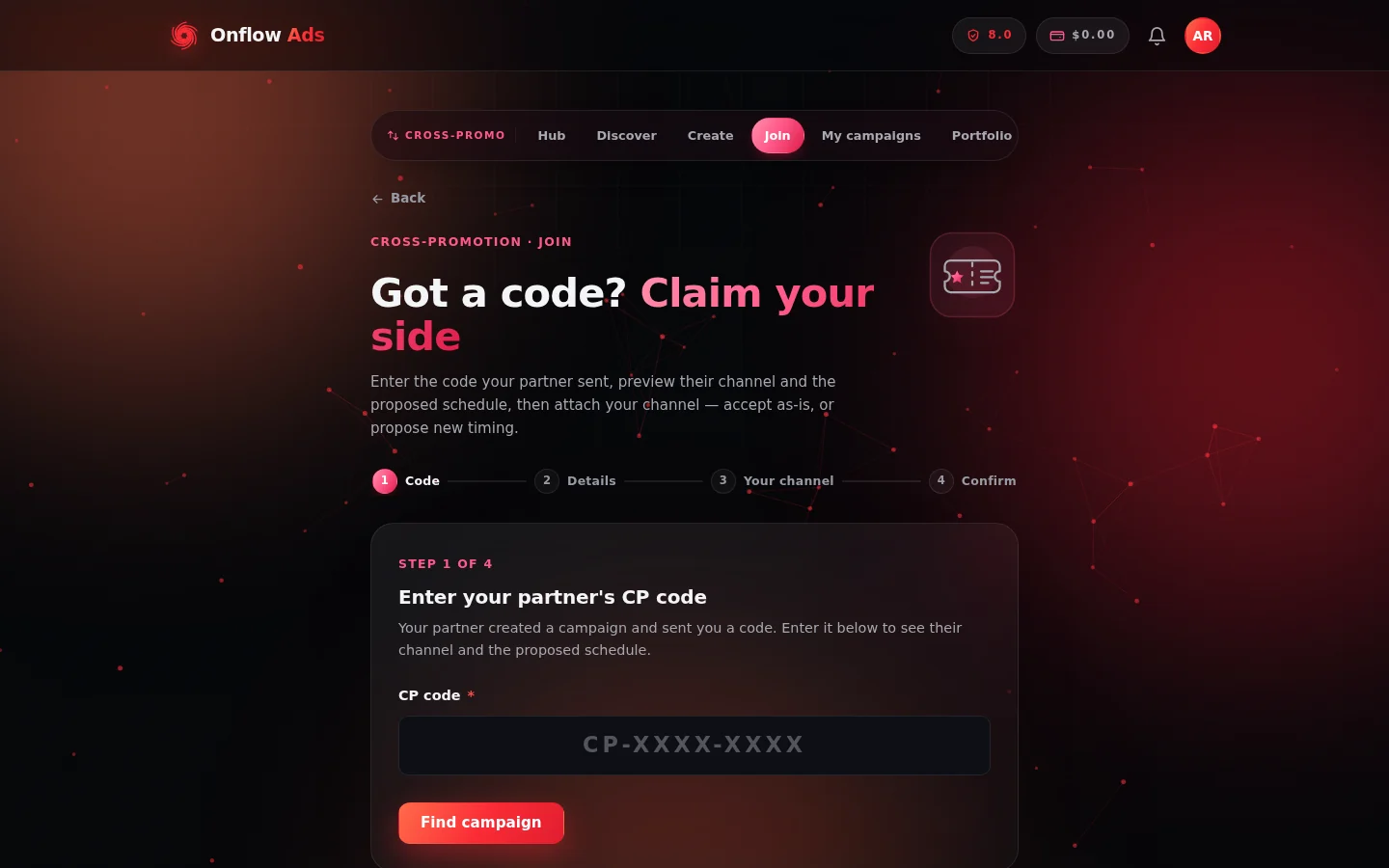
Step 1 of the join flow. Entering the code only looks the campaign up — you get to see the partner's channel and schedule before deciding anything.
-
Open https://onflowads.com/telegram/dashboard/cross-promotion, choose Have a code?, then Join a campaign. (Direct link:
/telegram/dashboard/cross-promotion/join.) -
Step 1 — Code. Type the code your partner sent (format
CP-XXXX-XXXX— capitalisation, spaces and dashes don't matter) and press Find campaign.tipIf you found the campaign on the open-campaigns board, the Join this campaign button brings you here with the code pre-filled and looked up automatically.
-
Step 2 — Details. You see the creator's channel card (title, @handle, subscribers, average views) and the schedule they set — go-live in their timezone plus UTC, the duration, and when it ends. Above the schedule is a "Before you commit" panel with trust signals:
- Track record — how many swaps this partner has completed, how many they dropped, and a reliability percentage with a small meter. Brand-new partners are flagged "New partner · no completed swaps yet".
- Star rating — the average rating other members have given them after completed swaps, with the rating count.
- Size verdict — how closely your two channels match in audience size: Great match, Good match, Fair match or Uneven sizes. Because it compares your channel with theirs, it appears once your channel is known — for example on directory and board cards after you've set your channel, and on the campaign page once you've attached your channel in the next step.
Press Continue if you're happy to proceed, or Back to bow out — nothing is committed yet.
-
Step 3 — Your channel. Paste your own public channel link or @username and press Fetch & continue. Like the create flow, you may be asked to add the Onflow Ads bot as an admin of your channel, and to pick your channel's genre. Attaching your channel pairs you into the campaign — from this point the creator can see you joined.
-
Step 4 — Confirm. Two choices:
- Keep this schedule — accepts the date, time and duration exactly as the creator set them and confirms the cross-promotion right away. You'll see "It's confirmed! 🤝" and both of you receive the full details by email.
- Propose changes — opens the scheduler pre-filled with the creator's timing so you can suggest a different date, time or duration. Press Send proposed changes; you'll see "Changes sent ✈️" and your partner gets an email and decides. You'll be emailed the moment they accept or decline. The full negotiation flow is covered in Schedule proposals.
After joining
- Once confirmed, both of you move on to building your posts — see Creatives.
- You can revisit the campaign any time at
/telegram/dashboard/cross-promotion/campaign/YOUR-CODEor from the Your campaigns list on the manual page. Entering the same code again on the join page also takes you straight to your campaign.
If you attach your channel but never confirm the schedule, the campaign is automatically released after about two days so the creator isn't left hanging — and repeat no-shows are temporarily blocked from joining new campaigns. See Rules and fairness.
Messages you might see when entering a code
| Message | What it means |
|---|---|
| "No campaign found for that code. Double-check it with your partner." | The code is wrong — or it was created in the Telegram bot. Bot codes must be joined in the bot, not on the website. |
| "This code has expired — ask your partner to create a new campaign." | Nobody joined within 24 hours, so the code auto-expired. |
| "This campaign has already been joined by someone else." | Codes are one-time; another channel got there first. |
| "That's your own code — share it with a partner instead." | You entered a code you created yourself. |
| "Joining is paused for now — a campaign you recently joined went unconfirmed." | You are in a temporary join cooldown after leaving campaigns unconfirmed. You can still create your own campaigns; the message shows when joining reopens. |
| "This blitz campaign is already full." / "...already been launched or closed." | The multi-partner campaign has no free slots left, or its creator already launched it. |
Joining a Blitz campaign
If the code belongs to a Blitz (one-to-many) campaign, the join page shows a special claim pane instead of steps 3–4: you see the creator's post (which will run in your channel), fetch your channel, write the post that will run in their channel, and press Claim slot. See Blitz campaigns for the full flow.
FAQ
Does joining cost a campaign slot?
No — only initiating (creating a campaign or sending a request) counts against a monthly allowance. Joins are unlimited on every plan.
The proposed go-live already passed — can I still accept?
No. Accepting an elapsed go-live is refused; use Propose changes to agree a fresh time. See Schedule proposals.
Can I back out after attaching my channel?
Yes — either Propose changes if it's just the timing, or cancel the campaign from its campaign page if you no longer want the swap at all. Just don't go silent: unconfirmed campaigns are auto-released after about two days and count as a strike against you.
Next: Schedule proposals — how to negotiate a different go-live time instead of accepting the one on offer.