Account Settings and Profile
Everything about your account lives on one page: https://onflowads.com/account. You can also reach it from the account menu in the site navigation (Account) or from the Account settings quick link on your dashboard.
At the top of the page you'll see:
- your avatar (your initials), name and sign-in email
- your User ID (your OFA ID)
- a role badge (Advertiser or Channel Owner) if you've enlisted in Paid Promotions
Below that are three tabs: Profile, Security and Wallet.
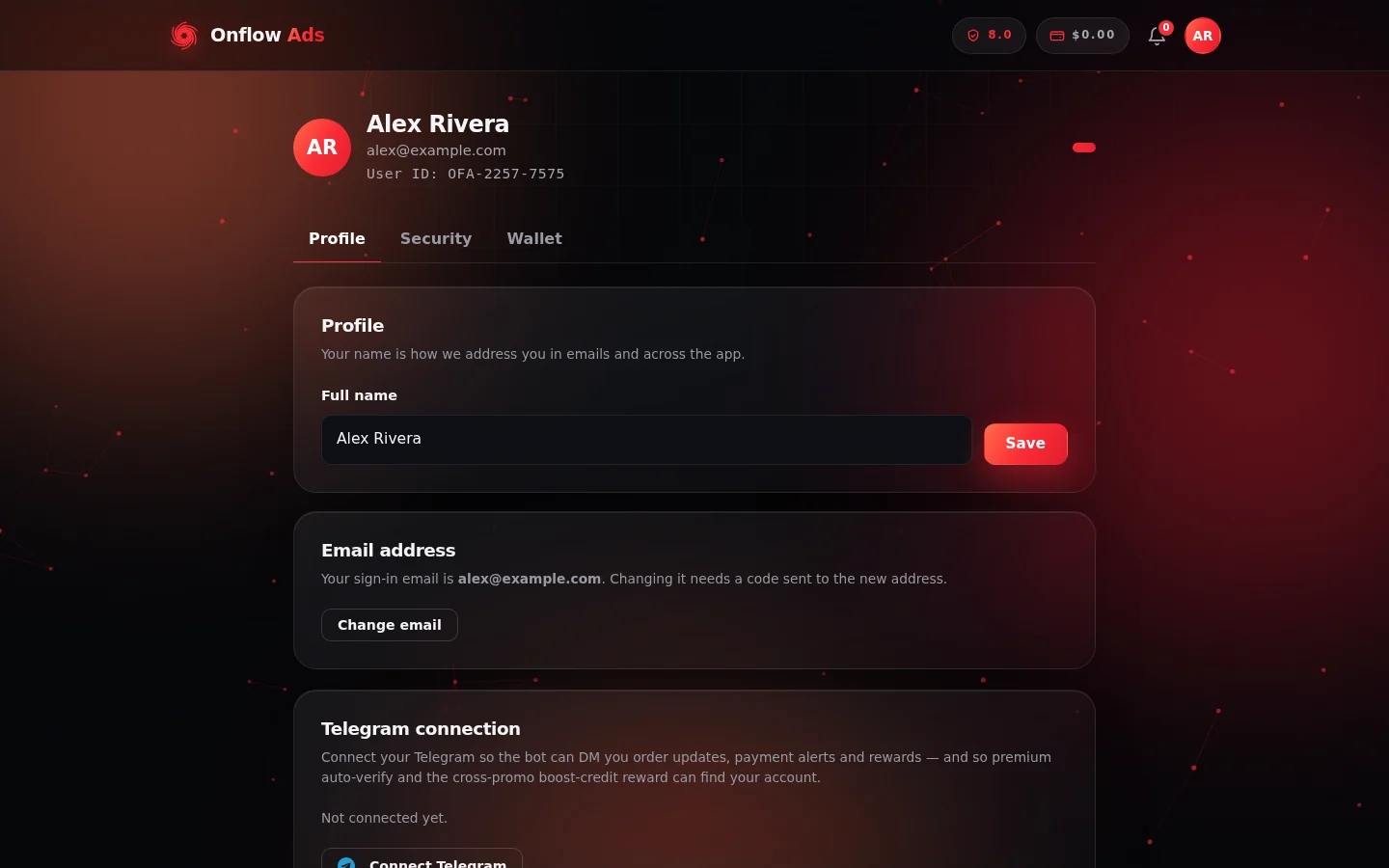
The account page at onflowads.com/account. Your User ID sits under your email at the top, and the Profile tab stacks the Full name, Email address and Telegram connection cards.
Profile tab
Changing your name
- Edit the Full name field.
- Click Save.
Your name is how we address you in emails and across the app. That's all it affects.
Changing your email address
Your sign-in email can be changed, but the new address must be verified first — a code is sent to the new email to prove you control it.
- In the Email address card, click Change email.
- Enter the New email and your Current password.
- If you have two-factor authentication on, also enter your 2FA code.
- Click Send verification code.
- We email a 6-digit code to the new address. Enter it in the field that appears.
- On success you'll see "Email updated" and the page reloads with your new address.
Things to know:
- The new email must not already be in use by another Onflow Ads account.
- After the change, other devices are signed out for security — the browser you made the change in stays signed in.
Telegram connection
Connecting your Telegram lets the Onflow Ads bot DM you order updates, payment alerts and rewards — and lets features like premium auto-verify and cross-promo boost-credit rewards find your account.
- In the Telegram connection card, check the status. It shows either "Your Telegram is connected." or "Not connected yet."
- If not connected, click Connect Telegram.
- Telegram opens with our bot — tap Start in the chat to finish.
- Refresh the account page; the card now shows the connected state.
If you created your account (or sign in) via Continue with Telegram, your Telegram is already linked — this card is mostly for accounts created with email.
Security tab
The Security tab manages two-factor authentication: enabling it, disabling it, and regenerating recovery codes. It's covered in full in Two-Factor Authentication.
Wallet tab
The Wallet tab is your money hub:
- Wallet balance — your balance, held in USD, with a Display currency selector to view it in other currencies.
- Add funds — appears when a top-up method (such as UPI or card) is enabled; pick a payment method and amount and see a live breakdown of fees and the amount credited before you pay.
- Request Withdrawal — withdraw your earnings via Telegram Stars, UPI, or USDT (BEP-20). The minimum and fee are shown on the card, along with the exact amount you'll receive.
- Recent transactions — your latest credits and debits.
- My Withdrawals — the status of each withdrawal request (pending, approved, paid, rejected, refunded).
- Refund a top-up — when eligible, request a refund of a recent unspent top-up; the policy and time window are shown on the card.
The wallet has its own section of this guide with full details on top-ups, withdrawals and refunds — this tab is simply where you'll find it all.
Where the rest lives
A few account-adjacent things are on the dashboard rather than the account page:
- Your channels — managed from the Telegram dashboard (see A Tour of the Dashboard).
- Reliability score — your delivery track record, reachable from the site navigation.
- Notifications — also in the site navigation.
Next: A tour of the dashboard — where the channels, engines and wallet you just set up actually live.