A Tour of the Dashboard
Once you're signed in (and your email is verified), Onflow Ads gives you two levels of home base:
- The platform launchpad at https://onflowads.com/dashboard — pick which platform you're working on.
- The Telegram dashboard at https://onflowads.com/telegram/dashboard — the command center for everything on Telegram, the platform that's live today.
Dashboard pages are for verified, signed-in accounts. If you're not signed in you'll be sent to the sign-in page; if your email isn't verified yet you'll be sent to the verification page first.
The platform launchpad (/dashboard)
This is the first thing you see after signing in: "Welcome back, [your name]", a Sign out button, and a card per platform.
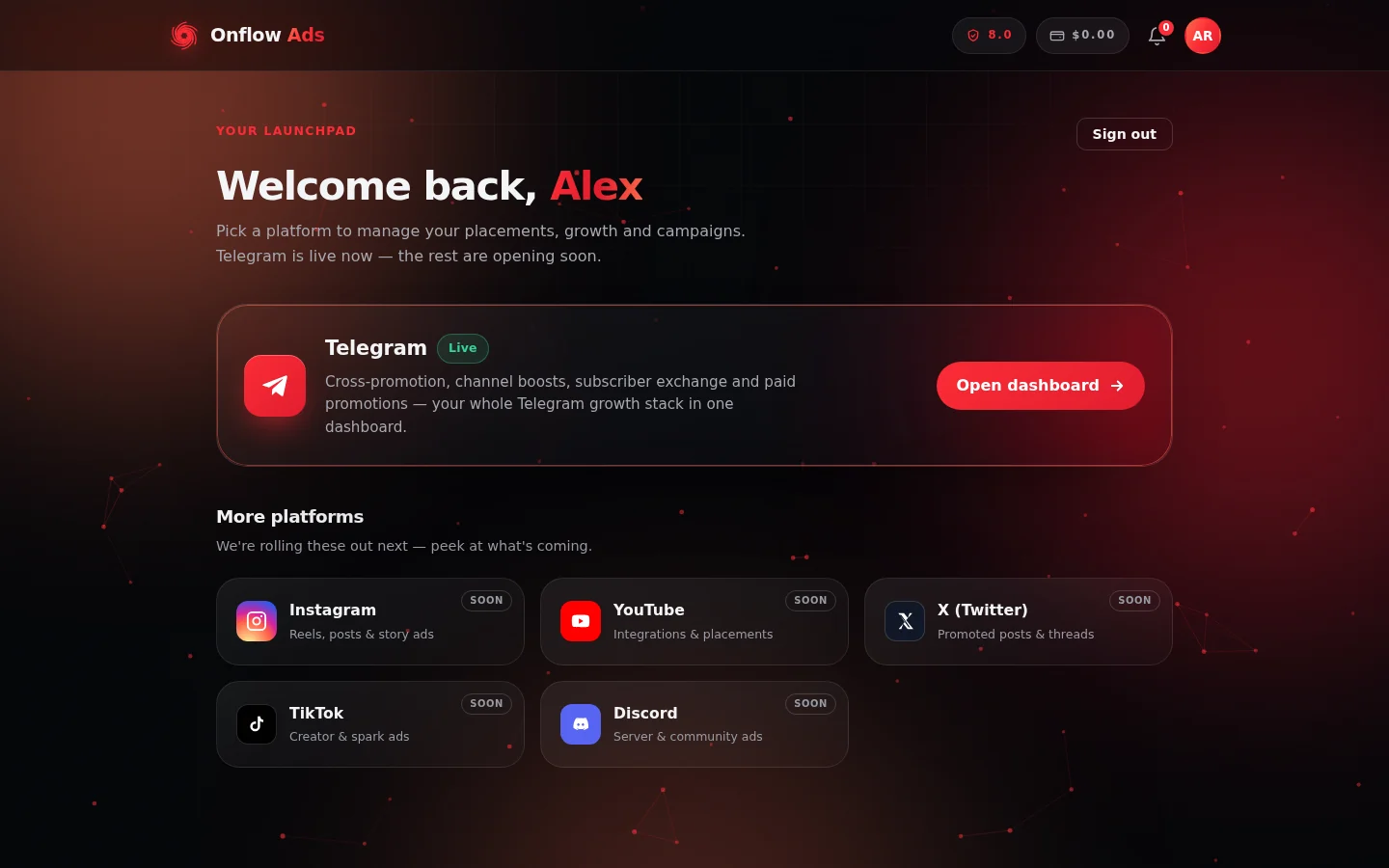
The platform launchpad at onflowads.com/dashboard. The Telegram card is the live one — Open dashboard takes you into the Telegram hub; the platforms under "More platforms" are marked Soon.
- Telegram — marked Live. Click Open dashboard to enter the Telegram hub.
- Instagram, YouTube, X, TikTok, Discord — marked Soon; these platforms are rolling out.
Below the platform cards:
- Quick links — jump straight to the Telegram dashboard, Add a channel, Account settings, or Pricing.
- Do more — one-tap shortcuts that open the Onflow Ads bot in Telegram: Create a campaign, AI Post Helper, and Withdraw earnings.
The Telegram dashboard (/telegram/dashboard)
This is your Telegram command center. The layout is a sidebar of engines on the left and your overview on the right.
The sidebar
| Sidebar entry | Where it takes you |
|---|---|
| Overview | This hub page. |
| Cross-Promotion (LIVE) | Create or join free promo-swap campaigns with partner channels. |
| Boost Metrics (LIVE) | Order followers, views, likes and reach, paid from your wallet. |
| Paid Promotions (DEV) | The sponsored-post marketplace — buy or sell placements. Marked DEV while in development. |
| Subscriber Exchange | Host ads in your channels and run your own across the exchange. |
| AI Studio (NEW) | AI-assisted copy and campaign tools. |
| Link Tracking (NEW) | Trackable links for measuring placement traffic. |
| Wallet | Your balance, top-ups and history. |
| Support | Chat with the Onflow Ads team. |
Under the links sits a Wallet panel with a Top up wallet button — one balance is spent across every engine.
The header and KPI strip
The header greets you by name and carries the Sign out button. Below it, four live stats give you a pulse on your account:
- Active campaigns — across all engines
- Connected channels — on Telegram
- Reach · 7 days — impressions delivered
- New subscribers · 7 days — from swaps and boosts
(The numbers show a dash until there's data to count.)
Your engines
Large cards repeat the sidebar's engines with a one-line description each — Cross-Promotion, Boost Metrics, Subscriber Exchange, Paid Promotions and Support. Click any card to enter that engine.
Power tools
Two shortcut cards that open the Onflow Ads bot in Telegram:
- Create a campaign — start a new ad campaign, guided, synced with your account.
- Paid Promotions marketplace — browse and book sponsored post slots via the bot.
My channels
At the bottom, My channels lists every Telegram channel you've connected, and the + Add channel button (which goes to /telegram/dashboard/channels/new) lets you connect a new one. Connecting a channel is the key first step for almost everything else — cross-promos, boosts and paid placements all act on your connected channels.
The account menu in the navigation
Wherever you are on the site, the account menu in the top navigation gives you one-click access to:
- Account — your settings page
- Dashboard — the platform launchpad
- Upgrade plan — when a higher plan is available for your account
- Reliability — your reliability score
- Wallet — with your live balance shown
- Notifications
- Help and Guide — this documentation
- Sign out
On larger screens, Wallet, Reliability and Notifications also appear as their own icons in the header next to the account menu; on phones they live inside the menu.
Suggested first steps
- Open the Telegram dashboard and click + Add channel to connect your channel.
- Visit Cross-Promotion and create (or join) your first free swap campaign.
- Check your Wallet and top it up if you plan to use Boost Metrics or paid placements.
- Pop into Account → Security and turn on two-factor authentication.
Next: Account FAQ and troubleshooting — quick answers if anything along the way didn't behave.