Orders and Campaigns
Everything you've booked lives at https://onflowads.com/telegram/dashboard/paid-promotion/orders — the Campaigns pill in the navigation bar. One checkout equals one campaign; every number on this page is measured by our monitor, never self-reported by owners.
This page covers the life of an order from payment to payout. The proof machinery a delivered order carries (live post link, proof archive, certificates) is on Tracked links and delivery proof; the escalation path when something went wrong is on Raising a dispute.
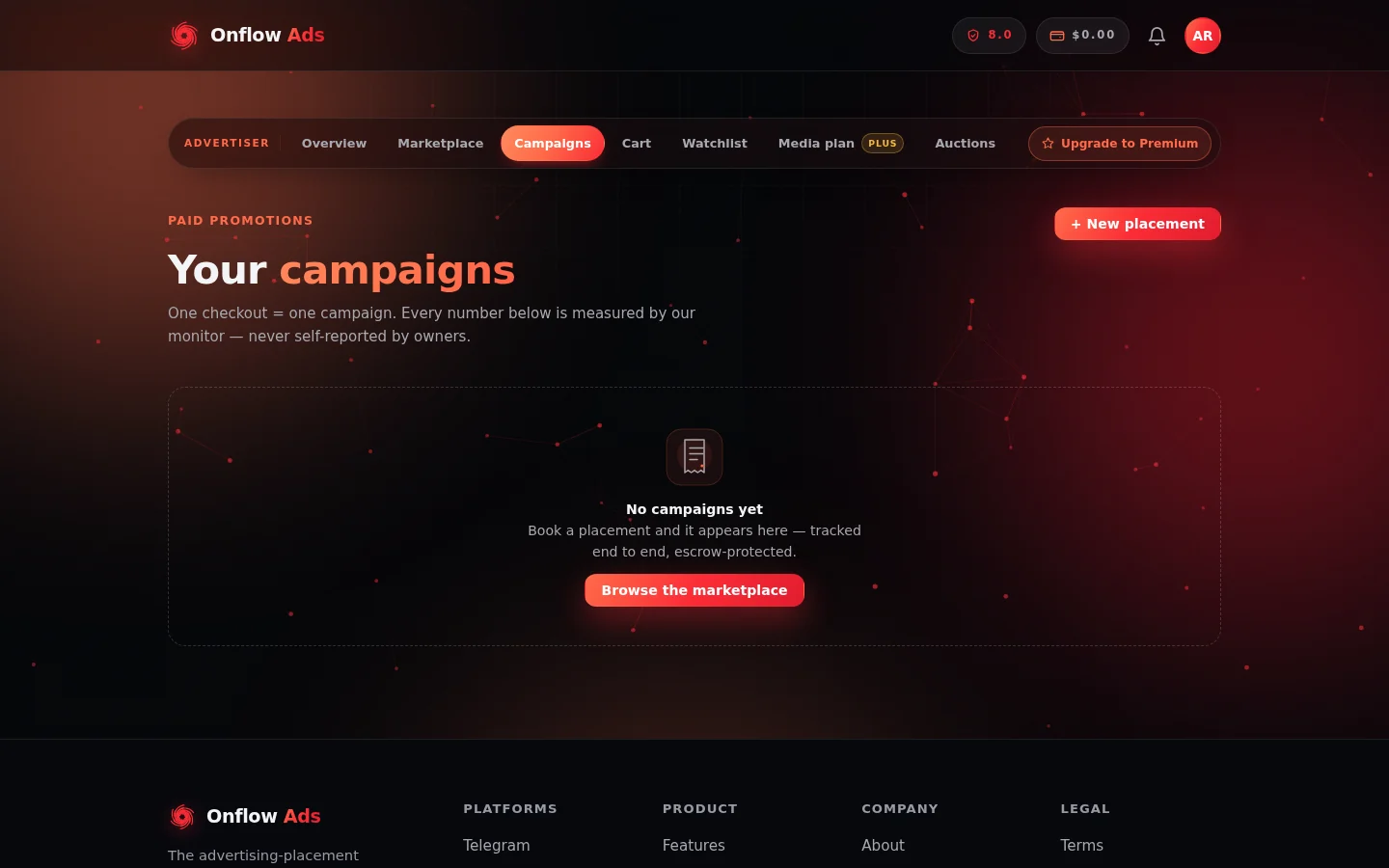
The Campaigns page. Each checkout becomes one campaign card here, with its individual placements listed underneath it.
Campaign cards
Each campaign (one checkout) gets a card summarising:
- Spend in escrow — what you paid;
- Measured reach — total monitor-measured views across the campaign's placements;
- Blended CPM — computed from measured lines only, labelled with how many of the campaign's orders are measured ("N of M"). "Not measured yet" is never rendered as "delivered zero";
- CTR · tracked links — from first-party click tracking;
- a "Measured views per channel" bar chart once at least two placements are measured;
- Export CSV and PDF report links (plan-gated — see Analytics and reporting).
Under each campaign card sit its individual placements (orders). Bookings that don't belong to a listed campaign appear in a flat Placements section.
Order lifecycle and statuses
Every order carries a status badge:
| Badge | Meaning |
|---|---|
| AWAITING ACCEPT · countdown | Paid and in escrow; the owner has a live countdown (24 hours) to accept. If it lapses, you're refunded in full automatically. |
| SCHEDULED · date | The owner accepted; the post is waiting for its slot. |
| LIVE · verifying (countdown) | The post is live and your verification window is running (see below). |
| LIVE · pinned | The post is live and pinned. |
| RELEASED ✓ | The placement ran clean — funds released to the owner; the order is complete. |
| DECLINED | The owner declined — you were refunded to your wallet automatically. |
| CANCELLED | You cancelled the booking. |
| REFUNDED | The money came back to your wallet (auto-refund, insurance, or an upheld dispute). |
Click "Details" on any order to expand its timeline: Booked and held in escrow → Accepted by owner → Posted and pinned → Delivery measured (with measured views and real CPM once final) → Funds released to owner. Declined/cancelled/refunded orders show a short two-step history with the reason.
Orders with delivery data also show a progress meter: measured views vs promised views — and once delivered, the delivery-proof panel.
While the post is live
Our monitoring bot repeatedly checks that the post is still live and still pinned for the promised top-hours, and samples views, forwards and reactions on a schedule throughout the run. The check cadence is a benefit of your plan and is locked onto the order at purchase — a plan change later can't downgrade a protection mid-placement. A monitor flag pauses the release to the owner (see Escrow and buyer protection).
The verification window
After your post goes live, you get a short window (up to 48 hours, never longer than the ad's own duration) to check the live post and raise a concern if something is wrong. The "🔗 View live post ↗" chip opens the actual Telegram post. If you do nothing, the placement is auto-judged delivered when the window closes — you don't need to click anything for a clean delivery. (You can still dispute for up to 14 days after delivery.)
Cancelling a booking
You can cancel an order that hasn't gone live yet, straight from its expanded details:
- Before the owner accepts ("AWAITING ACCEPT") — cancelling is free and refunds you in full.
- After the owner accepts ("SCHEDULED") — a late-cancellation fee applies (the percentage is shown on the button, e.g. "Cancel booking · 15% fee"). The fee compensates the owner for the slot they committed; the rest refunds to your wallet.
- Live or delivered — cancellation is no longer possible; the dispute path is what remains.
The cancel button uses a two-tap confirm that states the exact refund and fee ("Confirm · refund $X (fee $Y)") before anything happens.
Cancelled and refunded bookings don't count against your plan's monthly placement allowance — cancelling never burns quota.
Counter-offers
An owner can respond to your booking with a counter-offer — a new price, optionally with a note. The order shows a "NEW PRICE" badge and a blue panel: "The owner proposed a new price: $X."
- Accept $X — your wallet is adjusted by the difference and the booking is confirmed at the new price (you'll be prompted to top up if the difference exceeds your balance).
- Decline — the counter is rejected and your original request stands (the owner can still accept or decline it as booked).
While a counter is pending, the order's details stay expanded so you can't miss it. The accept countdown continues to protect you throughout — an unanswered booking still auto-refunds when the window lapses.
After delivery
A delivered order's expanded details carry everything you need to judge and prove the placement:
- "🔗 View live post ↗" — the actual Telegram post.
- "🛡️ Delivery proof" — the frozen, signature-verified proof trail. See Tracked links and delivery proof.
- Placement Proof Certificate — on plans that include them, a publicly verifiable signed document for your client. Also covered on Tracked links and delivery proof.
- "Open a dispute" — if something went wrong, for up to 14 days after delivery. See Raising a dispute.
FAQ
The countdown ran out and nothing happened yet
Auto-decline and auto-refund run on a background sweep — the refund lands in your wallet moments after the window lapses, and the order flips to show it. The Activity page lists every event as it happened.
The order says LIVE but I can't see the post in the channel
Open it via the "🔗 View live post ↗" chip first — channels with lots of traffic scroll fast, and a pinned post shows at the top, not in feed order. If the chip's target is genuinely gone, that's what the monitor watches for — and what a dispute is for if it slips through.
Can I change the schedule after paying?
No — schedule and creative are both frozen into the booking. Cancel under the rules above and rebook. Note the owner sees your slot in their own local time automatically; there's nothing to coordinate.
What does "Measuring…" mean on a placement?
The monitor is still sampling the run. Views are sampled on a schedule across the whole promised duration and the campaign uses the peak observation — blank or "Measuring…" means not measured yet, never "delivered zero".
Next: Tracked links and delivery proof — the evidence trail behind a delivered order, and the certificate you can hand a client.