Watchlist and Price Alerts
The watchlist is your saved-channels list with built-in price tracking. Save a channel you're not ready to book, and the platform snapshots its price once a day — so when it gets cheaper, you know, and you can prove it was cheaper than when you saved it.
The watchlist lives at https://onflowads.com/telegram/dashboard/paid-promotion/watchlist (the Watchlist pill in the navigation bar).
Why use it
- Timing. Prices in the marketplace move — owners run spotlight deals, adjust rates, and (if they opt in) let demand-based pricing lower quiet weeks. The watchlist catches the drop for you.
- Shortlisting. Building a campaign across ten candidate channels is easier when they're saved in one place with live stats.
- Auction opportunities. When a channel you watch opens a prime-slot auction, you can be told before it closes.
Saving a channel
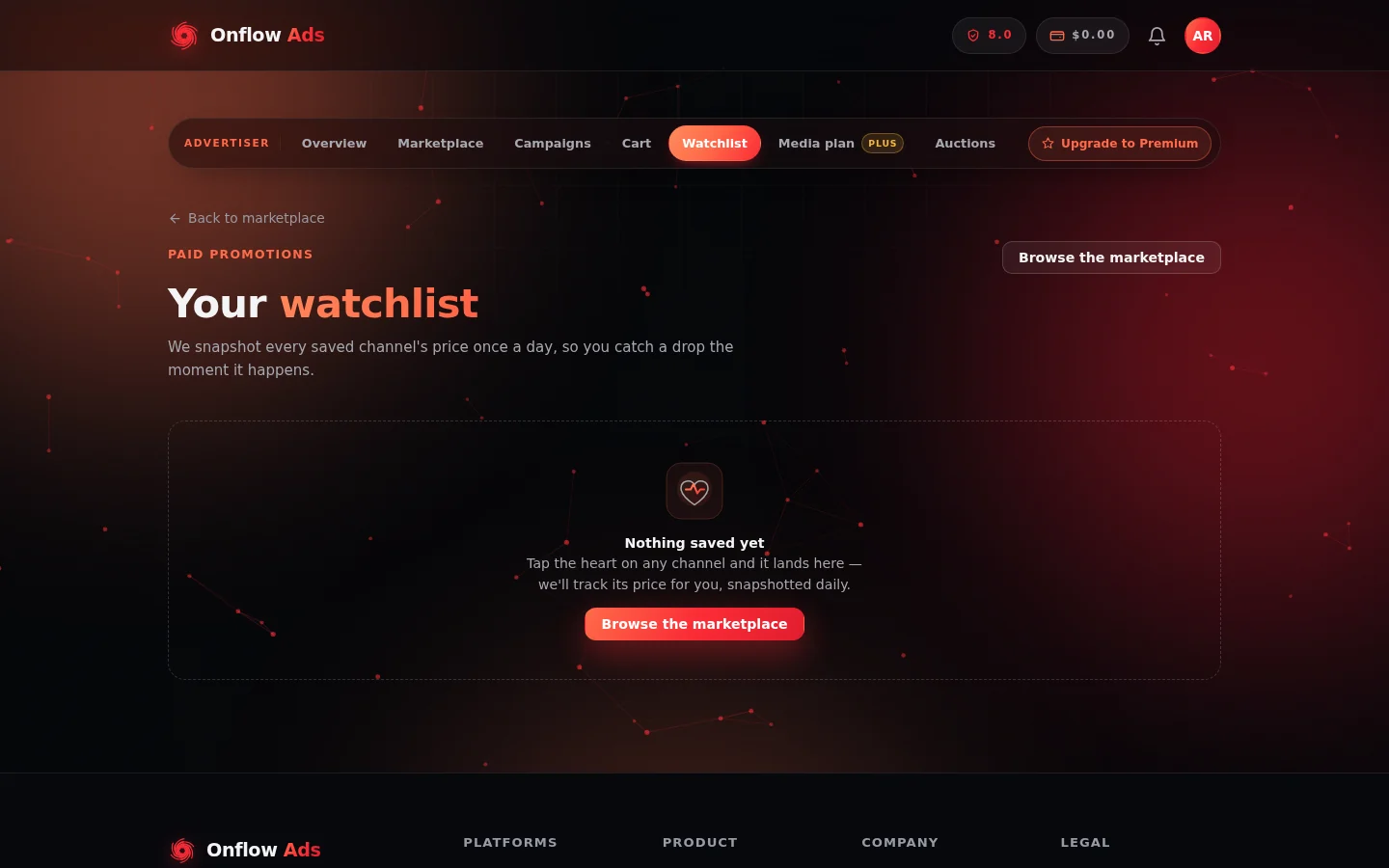
The watchlist page before anything is saved. Saved channels appear here as cards; until then it points you back to the marketplace, where the heart lives.
- In the marketplace catalog, tap the heart on any channel card.
- You'll see the confirmation: "Added to your watchlist. We'll tell you if the price drops."
- Tap the heart again to remove it ("Removed from your watchlist.").
The heart responds instantly and syncs in the background — if the save fails (for example, the connection drops), the heart reverts and you're told your watchlist didn't change. A double-tap on a slow connection can never leave the icon disagreeing with what's actually saved.
Two rules apply when adding:
- The listing must be live. A paused or removed channel can't be added — you'd see "That channel isn't open for bookings right now." (A price alert on a channel that can't be booked would be a control that does nothing.)
- There's a cap on saved channels. If your watchlist is full, you're told the exact limit and to remove one before adding another. The watchlist page header shows how many you've saved out of your allowed maximum.
Reading the watchlist page
Each saved channel is a card showing:
- its current entry price ("now") next to the price when you saved it — struck through if it has changed;
- a green "−N% since saved" badge when the price has dropped since you saved it;
- the date you saved it ("saved Mar 4"), plus its live subscribers, average views, and engagement rate;
- an "alerts" bell badge when price-drop notifications are armed for this channel;
- an "Unavailable" badge (card dimmed) if the listing has since been paused or removed — it stays on your list so you notice if it comes back.
Clicking a card opens the channel page. The filled heart on a card removes it — the card dims while the removal confirms, and comes back (with the reason) if it fails.
The tracked number is the channel's entry price — the same "from" price the catalog card shows. That's deliberate: an alert about a format you never see on the card wouldn't be a drop you asked to hear about.
You can also filter the whole marketplace to just your saved channels with the heart-labelled Watchlist toggle next to the catalog's search box.
Price-drop alerts
Everyone can keep a watchlist. Being told about drops is a paid-plan benefit, included from the Lite plan up:
- When a watched channel's entry price falls below what it cost when you saved it, you get a notification — "ChannelName dropped 12%" — with the new starting price against the saved price, linking straight to the channel page.
- Only meaningful drops notify. Tiny moves are noise, and a notification for them would teach you to mute us.
- One alert per drop. An alert re-arms only after the price recovers to (or above) your saved price — a channel that simply stays cheap doesn't ping you every day.
Alerts are armed automatically when you save a channel on an eligible plan; the bell badge on the card confirms it.
Auction alerts
On the same plans, the watchlist also pings you once per auction when a channel you watch opens a prime-slot auction: "ChannelName opened a bidding slot", with the current top bid (or the opening price if nobody has bid), linking to the Auctions page. You're never pinged twice about the same auction.
Limits and rules at a glance
| Rule | Behaviour |
|---|---|
| Watchlist size | Capped per account; the page shows your count against the maximum, and the error tells you the exact limit when it's full |
| Who can save | Every plan, including Free |
| Who gets alert notifications | Paid plans (Lite and up) |
| Price snapshots | Once a day, per saved channel |
| Alert threshold | Only meaningful drops; small moves don't notify |
| Alert re-arm | After the price recovers — never repeats while the price stays low |
| Auction pings | One per auction per watcher, same plan requirement |
| Unavailable channels | Stay on the list, dimmed and badged |
FAQ
I saved a channel on Free — will I get drop alerts?
No — but your watchlist still works, snapshots still run, and the green "−N% since saved" badges still appear when you open the page. What a paid plan buys is being told the moment it happens.
The price dropped but I wasn't notified
Three usual reasons: the drop was too small to clear the alert threshold; you were already notified for this drop and the price hasn't recovered since (alerts re-arm only after recovery); or your plan doesn't include alert notifications.
A channel on my list shows "Unavailable"
Its owner paused or removed the listing after you saved it. It stays on your list — dimmed — so you'll notice if it returns. You can remove it with the heart any time.
Does saving a channel reserve a slot or a price?
No. The watchlist is tracking, not booking — prices are always re-quoted live when you actually book. The saved price exists so you can see how today's price compares.
Next: Booking a promo slot — when a watched price drops, this is what happens next.