Buying a plan
Buying a plan is the flow that takes you from Free (or from no paid tier) onto a rung of the ladder. It happens on the Pricing page at onflowads.com/pricing, it is paid from your Onflow Ads wallet, and it takes well under a minute once your wallet has funds.
This page covers a first purchase — you hold no paid tier today. If you already hold one, the same page handles it, but the buttons and the rules differ: see Renewing your membership, Upgrading your tier and Downgrading and letting a plan lapse.
Why you'd use it
Every product on Onflow Ads works on the Free tier. Buying a plan doesn't switch anything on that was off before — it raises limits, lowers fees, speeds up delivery and review, and unlocks pro tooling. The moment you pay, your new entitlements are live on the website and in the Telegram bot at the same time.
Before you start
- You need an Onflow Ads account. If you don't have one, create it at onflowads.com/signup. The pricing page's Get Lite / Get Plus / Get Elite / Get Master buttons route you there when you're signed out.
- You need wallet balance. Plans are charged from your Onflow Ads wallet. You can top up from the wallet page at any point — the checkout links you there if you're short.
- You need to know which tier you want. See Comparing the tiers, or the individual tier pages.
Onflow Ads never stores a card for memberships and never charges one. A plan is a single wallet debit, made only when you press the pay button.
Step by step
The whole purchase happens on one screen. The membership card at the top is your current standing, the Monthly / Yearly switch sits under it, and the purchasable tier cards run along the bottom.
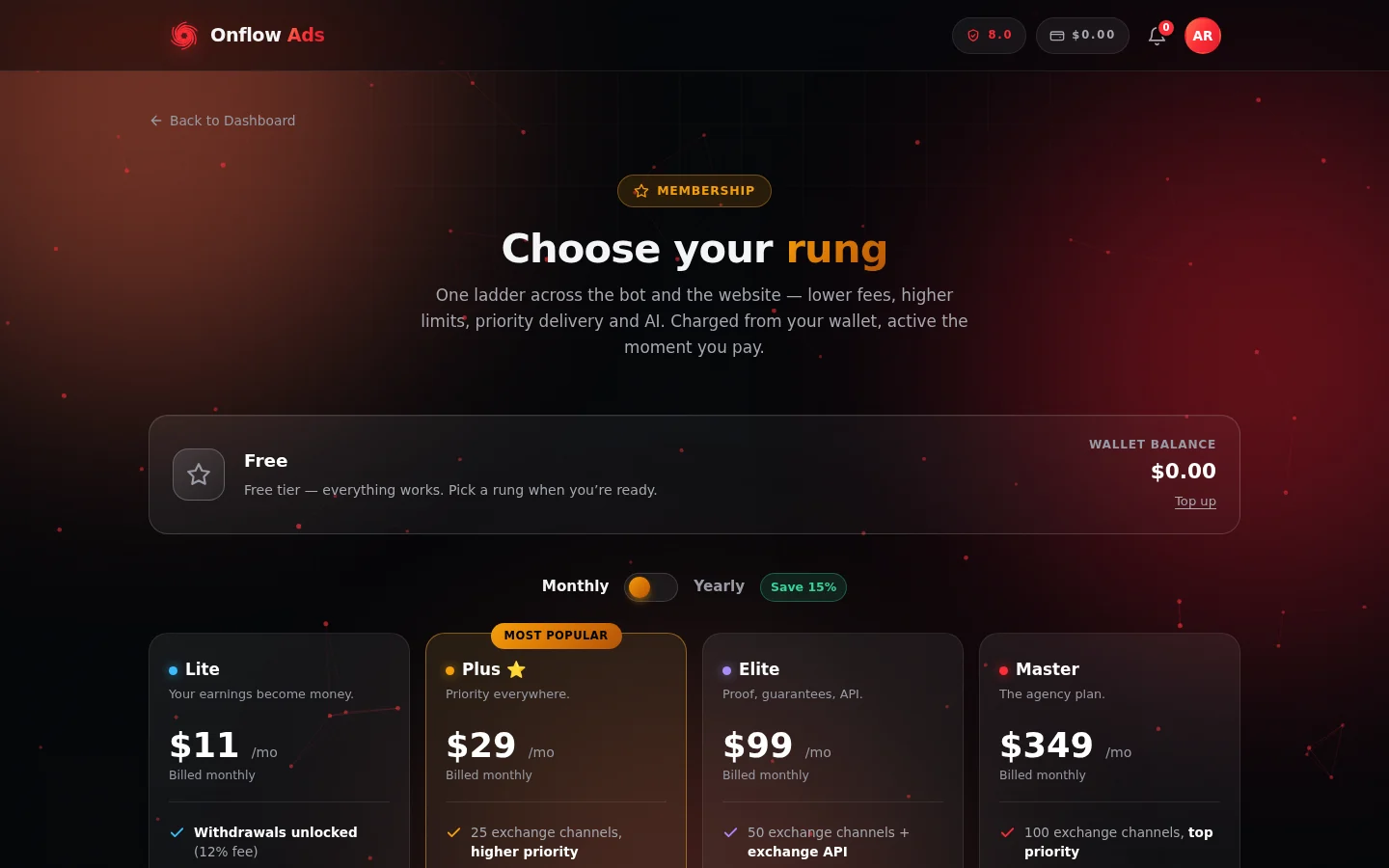
The Pricing page. Your standing and wallet balance are at the top, the billing toggle in the middle, and the four purchasable tiers below — the steps that follow work straight down this page.
1. Open the Pricing page
Go to onflowads.com/pricing. It's a public page, so anyone can view the ladder; signed in, the tier cards' buttons let you buy, renew or upgrade in place. Upgrade prompts across the platform all bring you here. If you try to buy while signed out, you're sent to the sign-up page first.
2. Check your current standing
The membership card at the top of the page is your account's live status. It shows:
| Field | What it tells you |
|---|---|
| Tier name and badge | The tier your account is on right now |
| Status pill | Active for a dated membership, Lifetime for one with no expiry. No pill on Free or Referral. |
| The line under the tier | "Renews [date] · N days left" for an active plan; "Lifetime membership — never expires." for a lifetime one; "Free tier — everything works. Pick a rung when you're ready." on Free; "Referral status — the premium look, earned. Pick a rung for the economics." on the earned Referral status |
| Legacy price lock notice | Shown only if you're a grandfathered legacy Premium account |
| Wallet balance | Your current balance, with a Top up link |
3. Pick a billing period
Use the Monthly / Yearly toggle (tagged Save 15%). Card prices update instantly:
- Monthly shows the monthly price and "Billed monthly". A monthly term is 30 days.
- Yearly shows the effective per-month price with the full yearly amount ("[amount] billed yearly") underneath. A yearly term is 365 days at a flat 15% discount off twelve monthly payments.
You can flip the toggle as often as you like before opening the checkout.
4. Pick a tier
There are four purchasable cards — Lite, Plus (marked "Most Popular"), Elite and Master — each listing its headline benefits. Click the card's button: Get Lite, Get Plus, Get Elite or Get Master.
Ultimate appears below the cards as a banner marked "Application only · 50 seats" with an Apply for Ultimate button; it cannot be bought here. See Applying for Ultimate.
5. Review the checkout
A window titled Confirm your purchase opens with the line "Review the details below. The amount will be deducted from your wallet balance." and an order summary:
| Row | Meaning |
|---|---|
| Membership | The tier you picked |
| Billing | "Monthly · 30 days" or "Yearly · 365 days" |
| Legacy price lock — Applied | Shown only on Plus, and only for grandfathered legacy Premium accounts |
| List price and First-purchase discount | Shown only when your account qualifies for the automatic 10% first-purchase discount |
| Total | The exact amount that will be deducted |
| Wallet after | Your balance once the charge goes through |
The checkout charges the period you had selected at the moment you opened it. Flipping the toggle behind the open window cannot change what you are billed.
6. Pay
Click the pay button — it shows the exact amount, for example Pay $29.00. The full term is charged from your wallet in one debit and your tier activates immediately.
7. Confirm what activated
A success window appears — "Welcome to Plus!" (or your tier) — reading "Your membership is active until [date]. Every benefit is live right now, in the bot and on the website." Choose Stay here or Back to dashboard.
The membership card behind the window refreshes on its own: new tier, new Active pill, new renewal date and days remaining, and your reduced wallet balance.
You'll also receive a "Premium activated" notification in-app, a Telegram message if your Telegram account is linked, and an email.
What happens after you pay
- Your tier is live instantly, on the website and in the Telegram bot. There is nothing to activate, refresh or claim.
- Your term is fixed. A monthly purchase buys 30 days from now; a yearly purchase buys 365 days from now.
- Nothing auto-renews. When the term ends, your account reads as Free again unless you renew. See Renewing your membership.
- Every product picks up the new limits at once — exchange caps, Boost discount and order ceiling, marketplace commission, cross-promotion allowances, AI quota, withdrawal fee, analytics depth and support lane. See Where tier limits appear across the product.
- A wallet transaction is recorded for the debit, visible in your wallet history.
Coming from the pricing page
The public pricing page shows the same ladder with the full comparison table. When you're signed in, its buttons become smart: clicking Get [tier], Renew or Upgrade opens the pricing page with that tier and billing period preselected — the page scrolls to the card and opens the checkout for you automatically.
Buying from the Telegram bot
You can also buy a membership inside the Onflow Ads Telegram bot. It reads its prices from the website's published plan catalogue, so a first-time buyer pays exactly the same amount on either surface, from the same wallet, with the same first-purchase discount. Whichever door you use, the result is one membership on one account.
Edge cases and what to do
Your wallet doesn't cover the price
The checkout shows Wallet after in red and replaces the pay button with Top up wallet, above the message "Your wallet balance doesn't cover this membership yet. Top up, then come back — your selection is one tap away." Nothing is charged. Top up on the wallet page, return, and pick the tier again.
If the balance changes between opening the checkout and pressing pay, the server refuses cleanly with an Insufficient wallet balance window — "You need [amount] but your wallet doesn't have enough funds. Top up your wallet and try again." — offering Cancel and Top up wallet. Again, nothing is charged.
You already hold a higher tier
Lower tiers can't be bought while a higher one is active. Their buttons read After [your tier] expires and are disabled, and the server refuses the purchase with a Lower tier locked message: "You already have [tier] active. Lower tiers can be purchased after it expires." See Downgrading and letting a plan lapse.
You already hold a lower tier
The button reads Upgrade to [tier] instead of Get [tier], and the checkout adds a forfeit warning plus a confirmation checkbox, because an upgrade replaces your current membership. Read Upgrading your tier before confirming.
You picked Ultimate
Ultimate is never sold through the checkout. If a purchase for it is ever attempted, the server answers: "Ultimate is application only — 50 founding seats. Apply through the contact page and we'll be in touch."
The page was open for a long time
If your browser was holding an old copy of the page with retired prices, the purchase is refused with "Pricing has been updated — refresh the page." Nothing is charged. Refresh, and the current prices load.
The connection drops mid-purchase
You'll see a Connection error window — "We couldn't reach the server. Please check your internet connection and try again." — with Close and Retry. Before retrying, check the membership card at the top of the page and your wallet history to see whether the charge went through. A purchase is only ever committed once, so a retry after a genuine failure is safe.
The membership card says it couldn't load
"Couldn't load your membership — check your connection and refresh." means the page couldn't fetch your account data. Both viewing and purchasing need that live data, so refresh before trying again.
Two purchases at the same time
If two purchases race each other (say, one in the bot and one on the website), they are processed one after the other, and the second is judged against the state the first one left. You cannot be double-charged into an accidental override.
Frequently asked
Which payment methods can I use?
You pay a membership from your wallet balance only. How you fund that wallet — the deposit methods available to you — is covered in the Wallet section of this guide.
Is promotional credit accepted?
Yes, and promotional (non-withdrawable) credit is spent first when you buy a membership.
Do I get an invoice?
The purchase appears as a wallet transaction with the tier and billing period in the description, and you receive an activation email.
Can I buy a plan for someone else?
No. A membership always applies to the account that pays for it.
What if I picked the wrong tier?
Purchases are not reversible. If you bought a tier below the one you wanted, you can upgrade at any time — but an upgrade forfeits the remaining time on the tier you just bought, with no refund. If you bought a tier above the one you wanted, you keep it until it expires; lower tiers unlock again after that.
How do I check my plan later?
The membership card at the top of onflowads.com/pricing always shows your current tier, status and expiry date.
Next: Managing your membership — what every button on that page means once you hold a paid tier.