Help & Support
When something isn't working — or you just have a question — Onflow Ads gives you several ways to get help, from instant self-serve answers to a real conversation with the team.
This section documents each of those routes end to end: what it is, when to use it, exactly what to click, and what happens afterwards.
If you're signed in, the Support hub in your dashboard is the signposted starting point — it puts the two main routes to a human side by side.
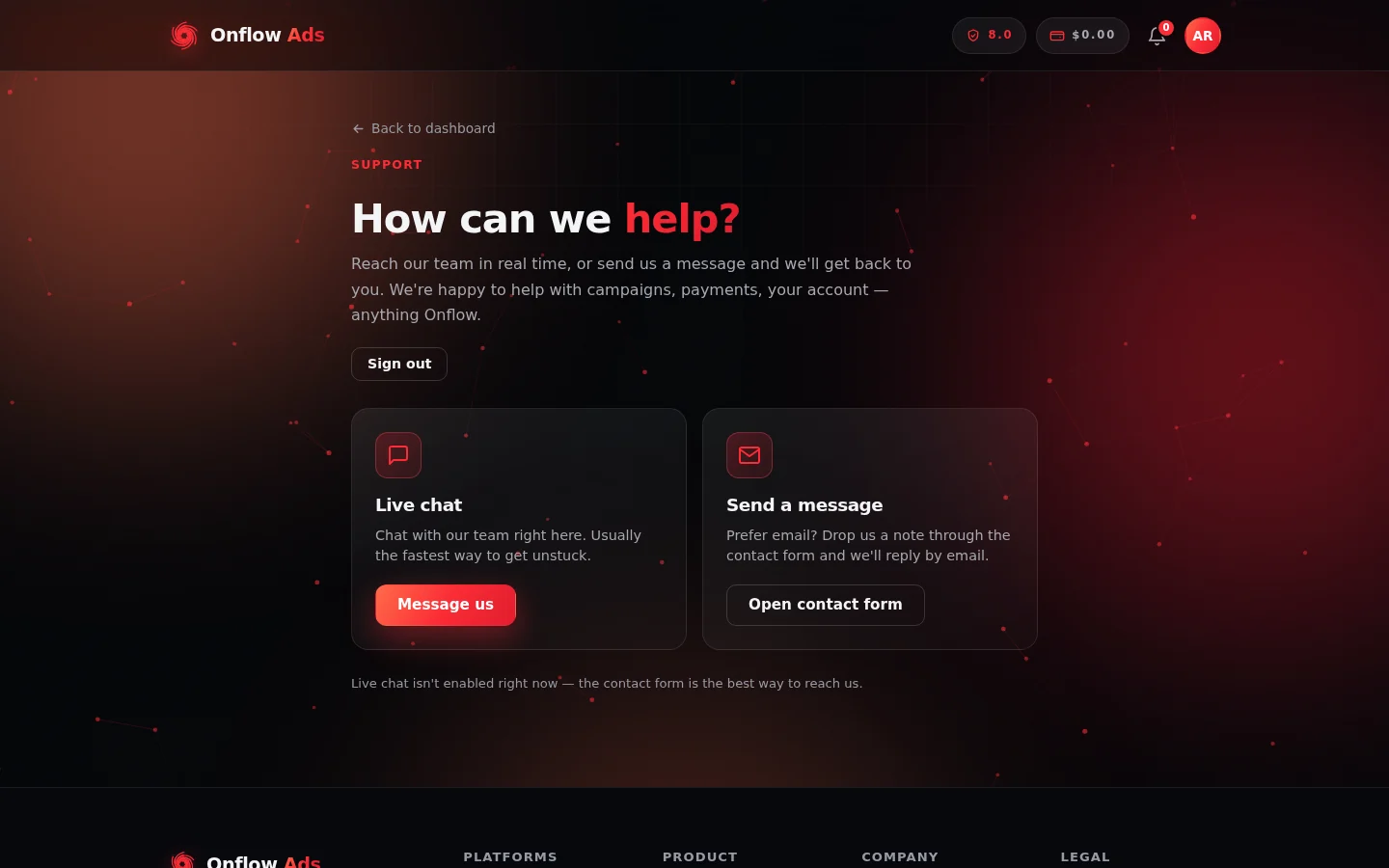
The Support hub in your dashboard. Two cards, two routes to the same team — and a note underneath when live chat isn't running.
Who it is for
Everyone — channel owners, advertisers and creators. Getting help works the same whether or not you're signed in. If you are signed in, the support form pre-fills your name and email, and members on eligible paid plans also get an instant AI first reply on new tickets.
A ticket is simply a support conversation with its own reference code. Opening a ticket is what happens when you press Send message in the help widget — you don't have to do anything special to create one.
Ways to get help at a glance
| Channel | Where it lives | Best for |
|---|---|---|
| Get help widget | The floating chat button in the corner of pages on https://onflowads.com | Instant answers and support tickets, signed in or not |
| Support page in your dashboard | https://onflowads.com/telegram/dashboard/support | A signed-in hub that routes you to live chat or the contact form |
| Contact form | https://onflowads.com/contact | Longer questions, partnerships, press — anything that suits email |
| support@onflowads.com | Writing to the team directly from your own inbox | |
| Report on a Boost order | The Report button on any order at https://onflowads.com/telegram/dashboard/boost/orders | A problem with one specific Boost / SMM order |
| System status page | https://onflowads.com/status | Checking whether the platform itself is having a problem |
How replies work
Onflow Ads support is email-first. You write on the site, and you may get an instant answer right on screen — but every reply written by a human is delivered to your email inbox, never as a chat message on the page. That means you never have to keep a browser tab open and waiting: send your message, close the window, and watch your email.
The help widget still shows you that the team has replied, and keeps your own messages and any AI answers on the page so you have the context.
Before you write in, use the Get an instant answer box at the top of the widget. It searches the Onflow Ads help centre and often resolves common questions — refunds, payments, orders — in seconds. See Getting an instant answer.
In this section
The pages below run in reading order: the help widget and instant answers first, then tickets and how replies work, then the other ways to reach us and the status page.
Using the Get help widget
Where the Onflow Ads help widget lives, how to open it, what every part of the panel does, and how it remembers your conversations.
Getting an instant answer
How to search the Onflow Ads help centre from inside the Get help widget, what the answer cards contain, and what happens when nothing matches.
Opening a support ticket
The full send-a-message flow in the help widget — picking a topic, filling the form, your reference code, and the emails that follow.
OnFlow AI — the instant first reply
Who gets an instant AI answer on a new Onflow Ads support ticket, how it appears, what it can and cannot do, and how it interacts with the human team.
Ticket statuses and threads
Reference codes, the four Onflow Ads ticket statuses, reading a conversation, sending follow-ups, closed threads and message limits.
Reporting a problem with a Boost order
How to flag a problem on a specific Boost / SMM order from your orders page — the reasons, what gets attached, and how the team replies.
The contact form
The classic write-to-us form on the Onflow Ads contact page — its fields and limits, the anti-spam check, and what happens after you press send.
The Support page in your dashboard
The signed-in "How can we help?" hub in your dashboard — its two cards, what each button does, and what changes when live chat isn't running.
Choosing the right support channel
A short decision guide to every way of contacting Onflow Ads — which route to pick, what each one gives you, and how fast to expect a reply.
The system status page
How to read the live Onflow Ads status page — the overall headline, each monitored component, incident notices, refresh behaviour and what it does not cover.
Maintenance windows
What the Onflow Ads maintenance page looks like, how it reconnects you on its own, which sections can pause individually, and why your data is never at risk.
Troubleshooting & FAQ
Quick fixes and answers for the most common Onflow Ads issues — getting help, replies, conversations, sign-in, payments, orders and site availability.
Next: Using the Get help widget — the fastest way to get an answer from any page.