Invoices and Receipts
Every time a wallet top-up is credited, Onflow Ads emails you a branded receipt with a PDF invoice attached. It is sent automatically to your account email address the moment the credit lands — you never have to request it.
Why you would use this
- To reconcile a charge on your bank, card or crypto statement.
- To claim the spend as a business expense.
- To give support an exact reference when something needs looking into.
Make sure the email address on your account is correct and verified before topping up, so your invoices reach you. You can check it on the Profile tab at https://onflowads.com/account.
Your receipts are sent to the address shown there, so it is worth a look before your first top-up:
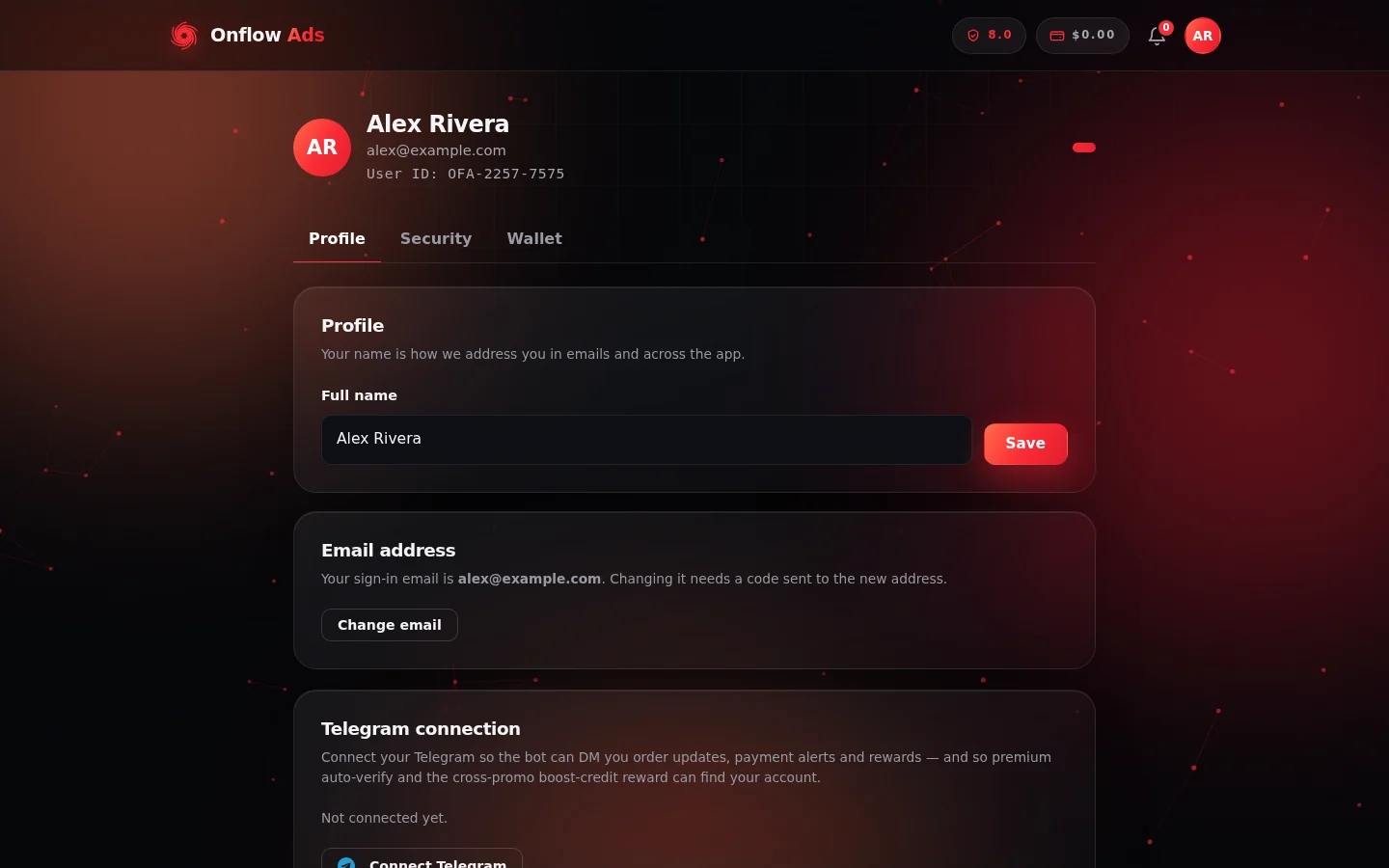
Account settings, Profile tab. The Email address card shows where your receipts will be sent, and Change email sends a code to the new address to confirm it.
When an invoice is issued
| Event | Invoice issued? |
|---|---|
| A top-up is confirmed and credited | Yes — once, automatically |
| A top-up fails, expires, or is abandoned | No — nothing was collected |
| A Boost order, placement or plan is paid from your wallet | No — those are wallet spends, shown in Activity |
| A withdrawal is paid out | No — the WD- reference in My withdrawals is your record |
| A top-up refund is approved | No — the refund reference is shown against the request |
Invoices exist for top-ups only, because a top-up is the point at which real money enters the platform. Everything after that is wallet movement, tracked in your Activity ledger.
The receipt email
- Subject line: "Your Onflow Ads receipt — $100.00 added (OFA-2026-000123)"
- Header: "Payment received", with the credited amount in large type under the label Credited to your wallet and a green Payment received badge.
- Receipt details table (see below).
- A closing note explaining that the fees were added on top of your top-up, so the full amount you added is credited and is yours to spend.
- An Open your wallet button linking to https://onflowads.com/account?tab=wallet.
- The PDF invoice attached, named after the invoice number.
Reading the receipt details
| Row | What it shows |
|---|---|
| Invoice | A unique reference like OFA-2026-000123. Quote this when contacting support. |
| Date | When the top-up was credited, in Indian Standard Time (IST). |
| Payment method | "UPI / Card" or "Cryptocurrency". |
| Processor | For example "Razorpay (UPI / card / netbanking)" or "OxaPay (crypto)". |
| Reference | The payment order reference for that specific top-up. |
| Added to wallet | The amount you asked to add — credited to your wallet in full. |
| Platform commission (X%) | The platform fee, added on top, with the effective percentage shown. When that differs from your plan's own rate, the plan rate is named on the line beneath it. |
| Payment processing fee | Only present when a processing fee applied to your payment. |
| Total paid | The figure that should match your bank, card or crypto statement exactly. |
| Deposit bonus | Extra credit earned by the deposit, printed below Total paid because it is not part of what you paid. Only present when a bonus applied. |
| Exchange rate | On UPI or card invoices only: the rate your credit was converted at, locked at payment time. |
| Credited to wallet | The USD amount added to your balance. |
The platform fee is a percentage of the amount added, set by your plan, but with a per-method minimum (₹200.00 on the UPI rail, $2.00 on the crypto rail). On a small top-up that minimum binds, so the fee works out as a higher effective percentage. The invoice prints the effective figure rather than the nominal one, so the number you read is the honest one — and names your plan's rate underneath whenever the two differ. See Deposit Fees and Your Plan.
The PDF invoice
The attachment is a single-page A4 document, laid out as a conventional invoice:
| Area | Contents |
|---|---|
| Header | The Onflow Ads wordmark (or brand logo) and site address on the left; INVOICE, the invoice number, and the issue date and time on the right. |
| Billed to panel | Your name (or your email if no name is set), your email, and your account ID. |
| Payment panel | The payment method, the processor, and the order reference. |
| PAID chip | A green chip confirming the payment was completed. |
| Line items | Wallet top-up (method) with the sub-line "Added to your wallet balance in full", then Platform commission (X%), then Payment processing fee if one applied. |
| Total paid | The total collected, in the currency you were billed. |
| Credited to wallet | The USD amount added to your balance, highlighted. |
| Exchange-rate footnote | On UPI or card invoices: "Converted at 1 USD = Rs 86.00 (rate locked at payment)." |
| Footer | A thank-you line, a note that the receipt is computer-generated and needs no signature, and the support email. |
The PDF renders Indian Rupee amounts as Rs 1,000.00 rather than with the ₹ symbol, for font-compatibility reasons. The HTML receipt in the email body uses ₹. The amounts are identical.
Currency on the invoice
The invoice is always presented in the currency you were actually billed:
- UPI / card top-ups — amounts in Indian Rupees (INR), with the credited USD amount and the locked exchange rate shown.
- Crypto top-ups — amounts in US Dollars (USD), with no exchange-rate line, because no conversion took place.
Your wallet display currency setting has no effect on invoices.
The invoice maths
Every invoice reads the same way:
Added to wallet + Platform commission + Processing fee (if any) = Total paid
and your wallet is credited the Added to wallet line in full. If any figure on your invoice does not match what your bank or exchange collected, contact support@onflowads.com with the invoice number.
Didn't receive an invoice?
Work through these in order:
- Check your Activity list first. Open your wallet and look for the "Wallet top-up" credit. The wallet credit is committed before the receipt is sent, so a missing email never means a missing credit.
- Check your spam or promotions folder for an email from Onflow Ads.
- Check the email address on your account — a receipt cannot arrive at an address that is wrong or not set.
- Allow a few minutes. The receipt is sent in the background right after the credit lands, not as part of the payment itself.
- Ask for a copy. Email support@onflowads.com with the order reference, or the approximate date and amount, and we will re-send it.
Occasionally the PDF attachment may be omitted — for example because of a temporary rendering issue. The HTML receipt in the email body carries exactly the same information and is equally valid as a record. Ask support if you specifically need the PDF.
Rules and limits
- One invoice per credited top-up. Invoices are not re-issued automatically, and are never issued twice for the same payment.
- Invoice numbers are sequential per account activity and are never reused.
- Invoices are dated and timed in Indian Standard Time (IST).
- Invoices are issued to the account holder — the account that was signed in when the top-up was made — regardless of which payment instrument was used.
- Invoice details cannot be edited after issue. If your name or address needs to appear differently, update your profile before your next top-up.
FAQ
Can I download past invoices from the dashboard? Not today. Your invoices live in your email inbox; support can re-send any of them.
Can I get a GST or tax invoice with my company details? Contact support@onflowads.com with your requirements and your invoice number.
Do I get an invoice when I spend my wallet balance? No — a spend is a wallet movement, not a new payment. It is recorded in Activity, and each service sends its own confirmation.
Which figure do I reconcile against my bank statement? Total paid. It is exactly what the checkout collected.
The receipt says a different amount than my balance went up by. That is expected on the UPI rail: Total paid is in rupees and includes the fee, while Credited to wallet is the USD that reached your balance. Both are printed side by side.
Next: Currencies and Exchange Rates — where the rate printed on your invoice comes from.