Your Balance and Transaction History
This page explains how to look at your money on Onflow Ads: what each figure on the wallet page means, how to read your transaction ledger, and how to prove a payment happened.
Nothing on this page moves money. It is purely about viewing and understanding your balance.
Why you would use this
- To check how much you can spend before booking a placement or a Boost order.
- To find out how much of your balance you are allowed to cash out.
- To work out what a charge on your account was for.
- To confirm that a top-up, a refund or a payout actually landed.
- To gather references (order, invoice or withdrawal) before contacting support.
Step by step: open your wallet
Everything described on this page lives on a single screen, so it is worth knowing what you are looking at before you start:
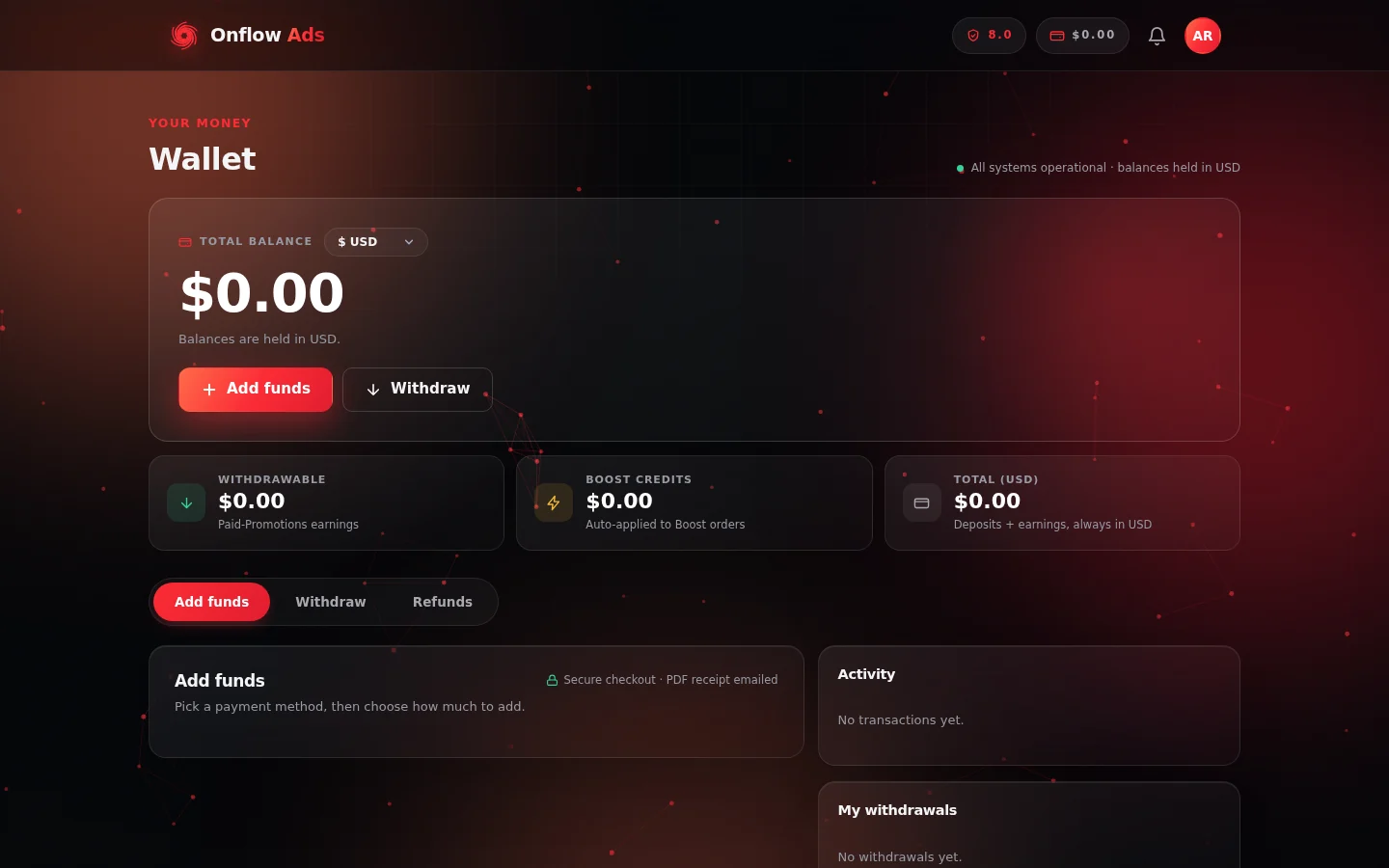
A brand-new wallet. The three stat tiles under the balance are the figures explained below, and the Activity and My withdrawals panels on the right are your transaction record.
- Sign in at https://onflowads.com.
- Open https://onflowads.com/telegram/dashboard/wallet.
- Alternatively open https://onflowads.com/account and select the Wallet tab — the same balance, in a more compact layout.
- The page header reads Wallet, with the line "All systems operational · balances held in USD" on the right.
- Your Total balance appears in large type, with a Display currency selector next to it.
- Three stat tiles sit underneath: Withdrawable, Boost Credits and Total (USD).
- The Activity and My withdrawals panels load in the right-hand rail.
If a panel is still loading it shows "Loading…". If something goes wrong it shows "Couldn't load your wallet." or "Could not load withdrawals." — refresh the page and it will normally recover.
The balance panel
| Element | What it does |
|---|---|
| Total balance (large figure) | Your spendable wallet cash, shown in your chosen display currency. |
| Display currency selector | Re-renders the figure in another currency. Display only — see Currencies and Exchange Rates. |
| Note line under the balance | Reads "Balances are held in USD." — and, once top-up methods have loaded, "Balances are held in USD. Add funds below with any available method." |
| Add funds button | Switches to the Add funds tab. |
| Withdraw button | Switches to the Withdraw tab. |
| Balance · recent activity sparkline | A small bar chart of how your balance has moved over your latest transactions. |
The chart is drawn by replaying your most recent transactions backwards from today's balance, and it only appears once you have at least two transactions on record. It is decorative — the Activity list is the authoritative record of what happened.
The three figures explained
Total (USD)
Everything in your wallet: money you added, service refunds credited back, earnings paid to you, and any promotional cash credit. This is what any purchase on the platform draws from.
Withdrawable
The portion of your total that is allowed to leave the platform. On Onflow Ads only Paid-Promotions earnings — money other advertisers paid you for running their placements — are withdrawable.
Everything else is locked: spendable on Onflow Ads, but not cashable. That includes:
- money you topped up yourself,
- refunds of services credited back to your wallet,
- promotional, bonus or goodwill credit.
So, in plain terms:
Withdrawable = Total balance − everything that was added rather than earned
If you have never sold a paid placement, your Withdrawable figure will be $0.00 no matter how much you have topped up. That is expected, not an error.
When you spend, the locked portion is used first. So spending your own topped-up money does not accidentally convert it into withdrawable money, and it does not eat into earnings you were planning to cash out.
Boost Credits
A third, separate pocket of promotional credit that can only be spent on Boost Metrics orders, where it is spent before your wallet cash automatically. It can never be withdrawn and never converts to cash — including through a refund, which returns it as credit.
You can earn Boost Credits from a deposit bonus on a qualifying top-up, from discount rebates, from referrals and from delivery guarantees. The itemised credit ledger lives on the Boost orders page — see Boost Credit and Referrals.
The Activity ledger
Activity in the right-hand rail is your wallet's transaction history. It shows your most recent 25 transactions, newest first. Each row shows:
- Credit or Debit as the row title,
- the reason underneath (or the date, if a reason was not recorded),
- the amount on the right: a green +$0.00 for a credit, a red −$0.00 for a debit.
If you have never transacted, the panel reads "No transactions yet."
Reasons you may see
Amounts always appear in USD here, whatever your display currency is set to.
| Reason | Direction | What happened |
|---|---|---|
| Wallet top-up | Credit | A top-up of yours was confirmed and credited. |
| Boost: service xquantity | Debit | You placed a Boost Metrics order. |
| Boost refund: … | Credit | A Boost order could not start, was cancelled, or under-delivered. |
| Paid promotion payout: channel | Credit | You were paid for a placement you ran as a channel owner. |
| Paid promotion cancelled — refund | Credit | A placement you booked was cancelled before it ran. |
| Paid promotion declined / expired / not posted — refund | Credit | A booking did not go ahead, so the held money came back. |
| Good-faith deposit: placement | Debit | A deposit was held for a booking. |
| Good-faith deposit returned | Credit | That deposit was released back to you. |
| Auction bid held: reference | Debit | Your bid amount was held while an auction ran. |
| Auction cancelled | Credit | A held bid was released. |
| Withdrawal hold WD-… | Debit | You requested a payout; the gross amount left your available balance. |
| Withdrawal refund WD-… | Credit | A payout request was rejected or reversed, so the hold came back. |
| Premium tier (billing) | Debit | You bought or renewed a Premium plan. |
| Featured placement / CP Featured placement | Debit | You paid for a featured or promoted listing. |
| Admin adjust — note | Either | Our team adjusted your balance, with the reason recorded. |
This list is illustrative, not exhaustive — every entry always states what it was for.
Match the amount and date against your emails first: purchases, bookings and plan renewals all send their own confirmation. If it still does not make sense, email support@onflowads.com with the date and amount and we will identify it for you.
The My withdrawals list
Below Activity, My withdrawals shows your most recent 25 payout requests. Each row shows:
- the method — Telegram Stars, UPI ID, or USDT (BEP-20),
- the destination you entered and the request date,
- the gross amount as a red debit,
- net $0.00 — what you receive after the service fee,
- a coloured status pill.
If you have never requested a payout, the panel reads "No withdrawals yet." The meaning of each status is documented in Withdrawing Your Earnings.
Jumping straight to a tab
You can link directly to a section of the wallet page:
| Address | Opens |
|---|---|
https://onflowads.com/telegram/dashboard/wallet | The Add funds tab (default) |
https://onflowads.com/telegram/dashboard/wallet?tab=withdraw | The Withdraw tab |
https://onflowads.com/telegram/dashboard/wallet?tab=refunds | The Refunds tab |
The anchors #withdraw and #refunds work the same way. This is handy for bookmarking the tab you use most.
Proving a payment
You have three independent paper trails, and they never contradict each other:
- Activity on the wallet page — the ledger of every movement.
- The receipt email with the PDF invoice sent for every credited top-up — see Invoices and Receipts.
- My withdrawals, where every payout request carries a
WD-reference.
When you contact support, quote whichever reference you have: the invoice number (starting OFA-), the payment order reference, or the withdrawal reference (starting WD-). It makes everything faster.
Rules and limits at a glance
- The Activity list and the withdrawals list each show your 25 most recent entries. Older entries are not shown on the page; ask support if you need history beyond that.
- Balances and ledger amounts are always in USD, regardless of your display currency.
- Your balance cannot go negative — a purchase that exceeds your balance is refused rather than overdrawn, and the checkout will offer to top you up first.
- Wallet pages require you to be signed in; there is no public view of a balance.
FAQ
My balance changed but I do not see a matching row. Reload the page. Activity is fetched when the page loads, so a transaction made in another tab will not appear until you refresh.
My Total went up but my Withdrawable did not. That is correct for a top-up, a service refund or promotional credit — those are spendable but locked. Only Paid-Promotions earnings raise the Withdrawable figure.
My Boost Credits went up after a top-up. A boost-credit deposit bonus applied to that top-up. It is granted at the moment the top-up is credited and is itemised in your boost-credit statement as Deposit bonus.
My Total went up by more than I deposited. A wallet deposit bonus applied. It lands as its own credit reading Deposit bonus, is spendable but not withdrawable, and does not count toward your lifetime funding — see Deposit Bonuses.
Why does my balance look different after switching currency? Only the display changed. Your money is held in USD and the other currencies are live conversions for readability — see Currencies and Exchange Rates.
Can I export my transaction history? There is no self-service export today. Contact support@onflowads.com if you need a statement for a period.
Next: Adding Funds — put money into the balance you have just learned to read.